What is CapCut?
Started on mobile in 2020, CapCut spread fast. Web, desktop on Windows and Mac, iPad, iOS, Android. ByteDance is behind it, which most users clock immediately because of the TikTok connection. The Singapore headquarters is where the company sits officially.
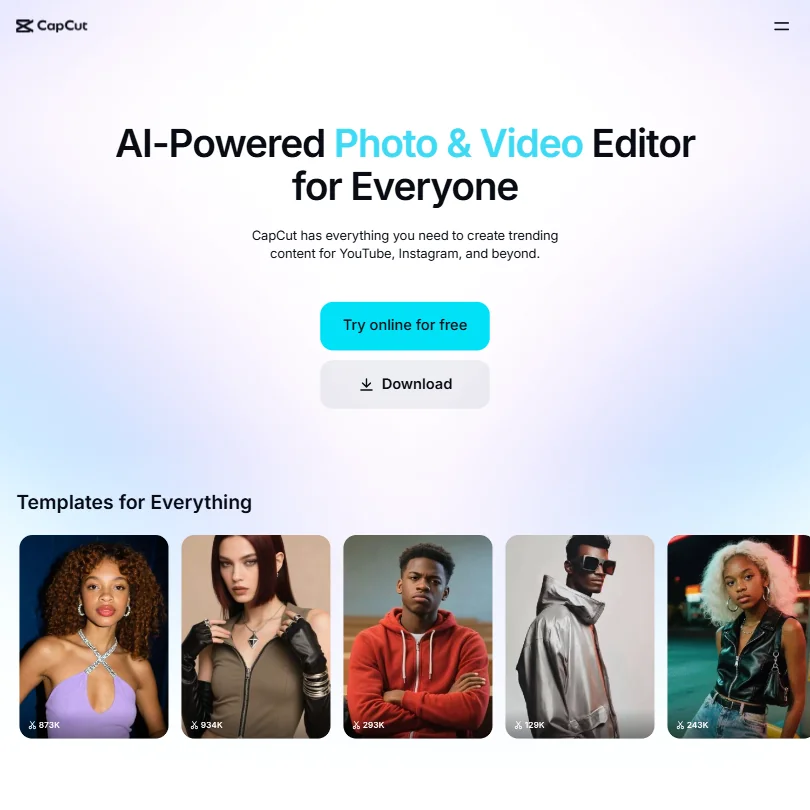
The pitch is simpler than the feature list suggests. Edit video. Add captions. Remove backgrounds. Use AI to generate clips from text or images. Export without a watermark, even on the free tier. That last part is what separates CapCut from a lot of tools in the same category.
The ecosystem has expanded considerably. Dreamina AI handles image and video generation. Pippit AI is positioned as a creative agent for marketing content. Both sit inside the CapCut orbit, not bolted on from third parties. This is a deliberate bet on owning the whole workflow, from raw footage to finished social post. Whether that bet holds depends on how good each piece actually is, and the pieces are uneven.
CapCut Features: Video Generation, Editing & AI Capabilities
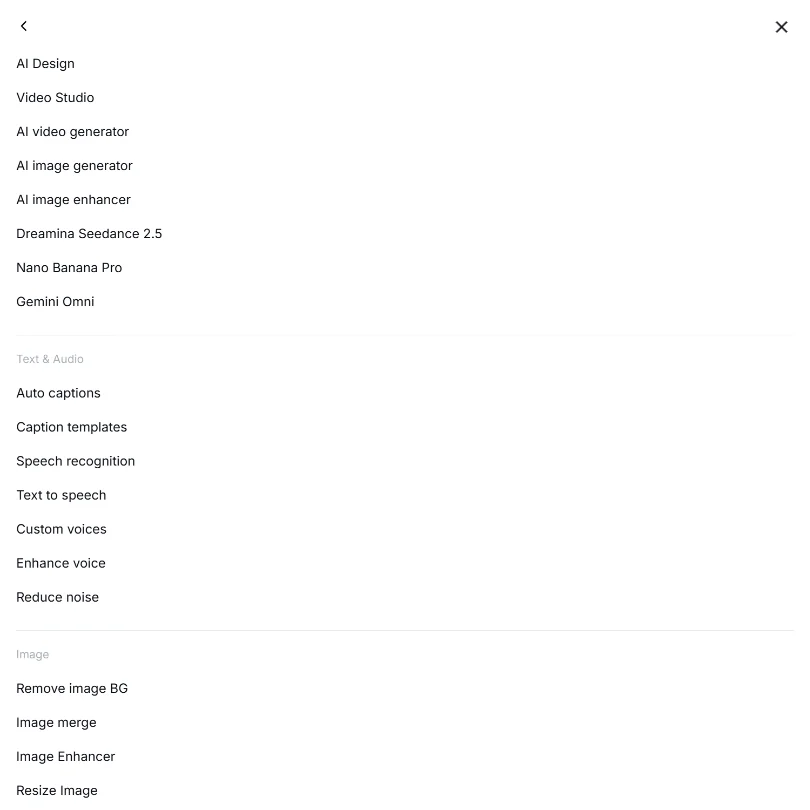
The feature list is genuinely long. Long enough that we'd question whether any single user touches half of it.
The AI video generator takes text or reference images and produces clips. It runs on what CapCut calls Dreamina Seedance 2.0, with Seedream 5.0 handling image generation and a few others in the roster. CapCut also integrates Nano Banana Pro as an AI image-generation and editing model within its AI Design tools, covering text-to-image, prompt-based editing, character consistency, 2K rendering, and 4K upscaling across web, desktop, and mobile. That's more named models than most competitors surface on a homepage.
The auto subtitle generator works across 25-plus languages and exports clean, watermark-free on the free tier. Not flashy. Works.
Background removal is another one. One-click, for both images and videos. On the audio side, CapCut offers text-to-speech with multiple natural-sounding voices, plus voice enhancement and noise reduction. Two functions creators actually need, not five that sound good on a feature list.
The template library sits at over 800,000. Practically, you won't run out of starting points. Quality variance is real. Some templates are polished. Others look like filler. Fair.
CapCut also supports screen recording, platform-dependent 4K export, and team collaboration through CapCut Teams, which covers shared projects and common assets. It also offers several task-specific batch tools, including bulk media uploads, batch subtitle edits, and a Batch Replace function, though there's no single universal batch mode covering every workflow. Worth being precise about that distinction.
The feature breadth is real. Test the depth on your own use case.
CapCut Video Quality: How Good Does the Output Actually Look?
For anything more demanding, the picture gets murkier. 1080p export is confirmed in the docs, and platform-dependent 4K export is documented too, though the availability varies by platform and plan. If you're editing footage that needs to stay at 4K through the entire pipeline without exception, confirm that first before committing.
The AI enhancement tools for existing footage handle upscaling and quality boosting on older clips.
CapCut AI Avatars & Voiceover: How Realistic Are They?
CapCut offers AI avatars with style options generated from prompts. Talking head functionality is listed as available. Custom voices are in there under the Text & Audio section of the docs. That's the setup.
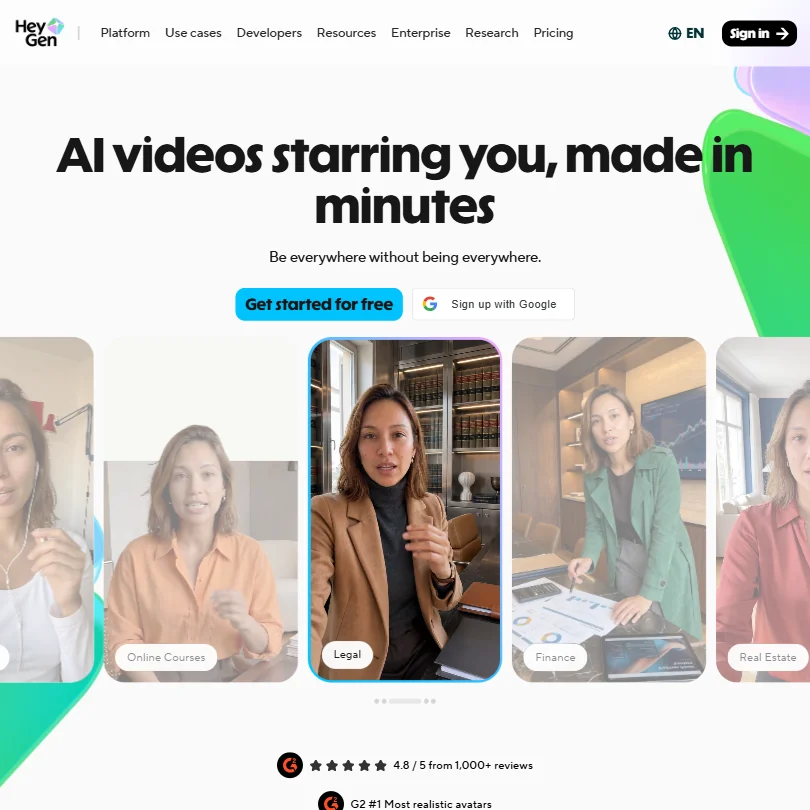
The reality is more modest. The avatar quality doesn't compete with what dedicated tools produce. HeyGen, which is positioned squarely at enterprise avatar-based video, is the cleaner comparison here, and the gap is real and noticeable. That said, the use cases are different. HeyGen is built for corporate video production at scale. CapCut's avatars are aimed at social content and quick creative work. A fair distinction, not a failing.
Voice cloning is listed as available. Test it before relying on it.
Is CapCut Easy to Use?
The timeline editor is familiar enough that you're not spending the first hour in documentation. Templates do a lot of the heavy lifting for new users.
The web and desktop versions are where things get slightly more complicated. Not complicated in a damaging way, exactly. But the feature set is large enough that the interface can feel dense if you're coming in without any prior video editing experience.
The AI tools sit in a separate layer from the traditional editing tools. That separation makes architectural sense. Not a workflow killer. Just worth knowing before you commit.
No live chat support is confirmed. Email and a help center are available. The community forum exists. The support infrastructure feels thin. Not absent. Thin.
CapCut Pricing: Is It Worth It for Creators & Teams?
Here's the frustrating part. CapCut does not publish its paid pricing publicly. The pricing page shows a free tier and references to paid plans, but no dollar figures. No Pro tier price. No team plan rate. Nothing you can put in a spreadsheet.
That's a choice. Not a great one.
CapCut makes you sign up or start a subscription to find out what things cost.
The free plan is genuinely strong. No watermark on most exports, including the video editor, background remover, subtitle tool, and converter. AI tools available with usage limits. Among the 34 AI video tools we track, 22 offer a free plan. CapCut's free tier is on the better end of that group.
The refund policy isn't publicly stated either. That matters when you can't find out what you're paying before you commit. For creators who mostly stay on the free tier, none of this is a problem. For anyone evaluating CapCut as a paid tool for a team, the opacity is a real obstacle. Full stop.
CapCut vs Adobe Premiere: Which Video Editor Is Better?
These two sit at opposite ends of video editing. CapCut is built for fast social content: it runs in the browser, on Windows and Mac, and on iOS and Android, and its free plan exports without a watermark. Adobe Premiere is a professional desktop editor for Windows and Mac, sold by subscription with a 7-day trial and no free plan.
Where CapCut wins: the cost of getting started and the speed of getting a clip out. The free plan covers most of what a creator needs, and AI tools such as auto captions, background removal, AI voiceover, voice cloning and lip sync are built in. Templates and a stock library take a short video from idea to upload quickly, on a phone if needed.
Where Premiere wins: depth. It handles multicam editing, colour grading, HDR, camera raw video, proxy workflows, motion tracking and effects compositing, and it takes third-party plugins. Its AI features, such as object masking and Generative Extend, are aimed at editors cutting longer or more polished work. It also has SOC 2, phone and live chat support and an API, none of which CapCut offers.
For short-form social video, CapCut is the better pick and costs nothing to start. For client work, long-form projects or anything that needs serious colour and effects work, Premiere is the tool.
Who Should Use CapCut? (And Who Shouldn't)
Solo content creators. That's the clearest fit. TikToks, YouTube Shorts, Instagram Reels. The free tier covers most of what they need. The AI tools are fast enough for daily posting. The mobile experience holds up.
Social media marketers needing quick turnaround on short-form video will find a lot here. Auto captions across multiple languages is a real operational benefit for teams posting across markets.
Professional video editors who need guaranteed 4K output and professional color grading. Not a great fit. DaVinci Resolve handles that category, and CapCut isn't positioned against it.
Enterprise teams that need clear commercial rights documentation or transparent pricing before signing a contract. Also not the right call.
Teams building avatar-heavy corporate video should look at HeyGen instead. The avatar quality and enterprise positioning are a better match for that use case, and the gap between the two tools on that specific function is hard to paper over.
CapCut Review Verdict
CapCut is very good at specific things and unclear about a lot of others. The free tier is the best argument for it. Genuinely useful, not crippled by watermarks the way some competitors' free plans are. The AI tools cover a wide range. Auto captions and background removal are the two standouts.
The opacity around pricing is the worst thing about it. Not knowing what you'll pay before you commit is a problem that doesn't shrink the more you use the tool. Missing commercial rights documentation compounds it. If you're making money from your content, you want clarity on what you're licensed to do with AI-generated output. CapCut doesn't give you that clearly.
The ByteDance question will also keep some users away, particularly anyone working in regulated industries or government-adjacent spaces. That's not paranoia. It's a real consideration based on how some markets have responded to ByteDance products broadly.
For the core audience, casual creators and social media teams, CapCut does enough well that it's hard to dismiss. It sits above the median in the AI video tools category we track. Not the best thing in the category. A solid free option that asks you to trust it on pricing and licensing without giving you much to go on. Some users will accept that trade. Others won't.
That split probably tells you where you land.
Frequently Asked Questions
Is CapCut free to use?
Yes, and the free plan is more useful than most. CapCut's free tier includes the full video editor, background removal for images and video, auto subtitle generation, and the converter, all without a watermark on export. AI tools are available on the free plan with usage limits. What you don't get is clarity on what the paid plans cost, since CapCut doesn't publish pricing publicly.
Is CapCut safe to use for professional or commercial content?
Fair question without a clean answer. CapCut is owned by ByteDance, which operates out of Singapore officially but has the same corporate lineage as TikTok. For most creators, that doesn't change anything day to day. For teams working in regulated industries or handling sensitive content, it's a real thing to think through. Commercial rights for AI-generated content are also not clearly documented in the vendor materials we reviewed. Worth resolving that before you build a paid campaign around CapCut output.
How does CapCut compare to other AI video tools?
It punches above average on the free tier and on ease of use for short-form content. The auto captions and background removal tools are faster and cleaner than what most competitors offer at the same price point, which is free. Where it falls short is in transparency, on pricing and on commercial rights documentation. For avatar-based content specifically, the gap between CapCut and dedicated tools like HeyGen is real and noticeable.