Adobe Lightroom is the pick when you edit in more than one place: the library and edits sync across Windows, Mac, iOS, Android and the web.
Buying guide · 17 tools ranked
Best AI Tools for Photographers
Find the best AI tools for photographers, grouped by the job each one does between the shoot and the client: raw editing, retouching, upscaling, backgrounds and product shots, and a portfolio website. Choose one tool per job, so your main editor stays the center and the AI tools handle cleanup, enlargement and publishing around it.
Our top 3 AI Tools for Photographers
Adobe Photoshop is the standard when a job needs PSD layers, adjustment layers, masks and a full CMYK working space for print, plus generative fill.
Magnific is for photographers who need to enlarge and sharpen images beyond what their editor can do: Magnific Precision and the Video Upscaler sit beside image models on one credit pool.
Best AI raw photo editors for photographers
5 picksRaw editors develop camera files, organize a library and increasingly mask and denoise with AI. Lightroom syncs a library across computer, phone and web, with AI masks and Generative Remove. Capture One suits studio work, with tethered capture and camera-specific color. ON1 Photo RAW and Luminar Neo are bought once, and darktable is free and open source, with AI that runs on your own device. Check how each charges, since ON1's cloud tools need its MAX plan and Luminar's AI tools are included for the first year. Choose by whether you shoot tethered, sync across devices or want to own the software.
#ToolScorePriceWhy pick it
From $11.99free planAdobe Lightroom is the pick when you edit in more than one place: the library and edits sync across Windows, Mac, iOS, Android and the web.
Show detailsHide details01 Adobe Lightroom: Best for syncing a raw library across devices8.1Score 8.1 out of 10From $11.99free planAdobe Lightroom is the pick when you edit in more than one place: the library and edits sync across Windows, Mac, iOS, Android and the web.Visit site ↗ReviewDetailsCloseShow more about Adobe Lightroom
From $11.99free plan
Adobe Lightroom is the pick when you edit in more than one place: the library and edits sync across Windows, Mac, iOS, Android and the web.
Show detailsHide detailsAdobe Lightroom: Best for syncing a raw library across devices
8.1Score 8.1 out of 10From $11.99free planAdobe Lightroom is the pick when you edit in more than one place: the library and edits sync across Windows, Mac, iOS, Android and the web.Visit site ↗ReviewDetailsClose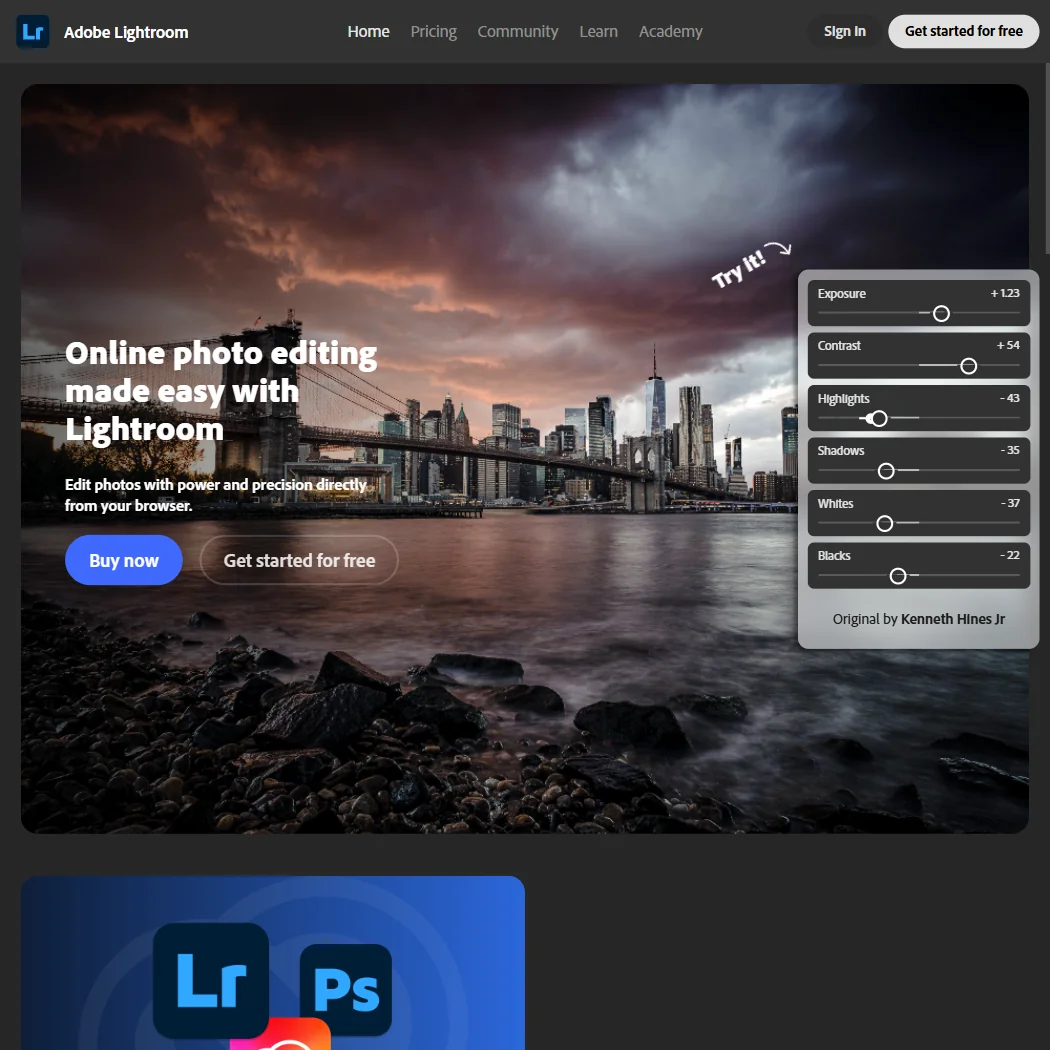
Adobe Lightroom is the pick when you edit in more than one place: the library and edits sync across Windows, Mac, iOS, Android and the web. AI masks such as Select Subject and Select Sky, Generative Remove and Denoise are built in, and Adobe does not train Firefly on your content. It is sold by subscription from $11.99 a month billed yearly. Tethered capture and plug-ins belong to Lightroom Classic.
- Non-destructive raw editing with AI-powered masking, such as Select Subject and Select Sky, across desktop, web and mobile.
- Generative Remove and generative upscale, powered by Adobe Firefly and Topaz Gigapixel, clear distractions and enlarge low-resolution photos.
- Sold only by subscription, with no perpetual license to buy the software outright.
From $79.99ON1 Photo RAW suits photographers who want a raw editor, library and AI tools without a subscription: $79.99 once, installed on 2 computers.
Show detailsHide details02 ON1 Photo RAW: Best for raw editing you buy once7.6Score 7.6 out of 10From $79.99ON1 Photo RAW suits photographers who want a raw editor, library and AI tools without a subscription: $79.99 once, installed on 2 computers.Visit site ↗ReviewDetailsCloseShow more about ON1 Photo RAW
From $79.99
ON1 Photo RAW suits photographers who want a raw editor, library and AI tools without a subscription: $79.99 once, installed on 2 computers.
Show detailsHide detailsON1 Photo RAW: Best for raw editing you buy once
7.6Score 7.6 out of 10From $79.99ON1 Photo RAW suits photographers who want a raw editor, library and AI tools without a subscription: $79.99 once, installed on 2 computers.Visit site ↗ReviewDetailsClose
ON1 Photo RAW suits photographers who want a raw editor, library and AI tools without a subscription: $79.99 once, installed on 2 computers. It browses folders without an import step and supports tethered shooting for Canon and Nikon. Cloud-rendered generative tools, cloud sync and Restore AI need the MAX plan at $129.99. A free companion app exists for iOS and Android, and the trial runs 30 days.
- Sold as a one-time perpetual licence, not tied to a subscription.
- A free companion app exists for iOS and Android alongside the desktop app.
- Cloud-rendered generative tools and Cloud Sync across devices need the MAX plan; they are not part of the base one-time purchase.
Freedarktable is the choice for photographers who want a full raw developer at no cost: free forever, open source, no account, with non-destructive editing and AI masking, denoising and 2x or 4x upscaling that run on your own device.
Show detailsHide details03 darktable: Best for free raw editing on your computer7.3Score 7.3 out of 10Freedarktable is the choice for photographers who want a full raw developer at no cost: free forever, open source, no account, with non-destructive editing and AI masking, denoising and 2x or 4x upscaling that run on your own device.Visit site ↗ReviewDetailsCloseShow more about darktable
Free
darktable is the choice for photographers who want a full raw developer at no cost: free forever, open source, no account, with non-destructive editing and AI masking, denoising and 2x or 4x upscaling that run on your own device.
Show detailsHide detailsdarktable: Best for free raw editing on your computer
7.3Score 7.3 out of 10Freedarktable is the choice for photographers who want a full raw developer at no cost: free forever, open source, no account, with non-destructive editing and AI masking, denoising and 2x or 4x upscaling that run on your own device.Visit site ↗ReviewDetailsClose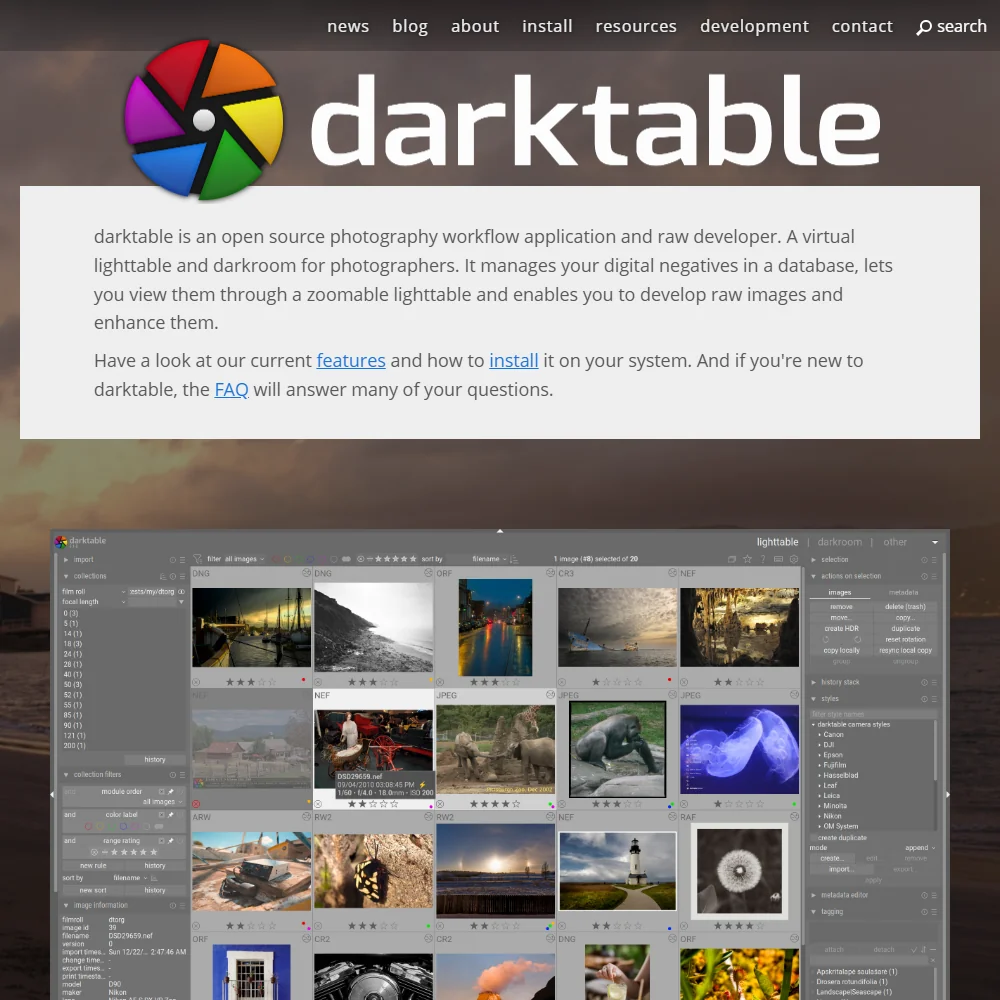
darktable is the choice for photographers who want a full raw developer at no cost: free forever, open source, no account, with non-destructive editing and AI masking, denoising and 2x or 4x upscaling that run on your own device. Object removal uses manual clone and heal tools, there is no cloud sync or mobile app, and it cannot share photos with clients. Luminar Neo removes objects with AI.
- Free with no paid tier, subscription or account, released under the GPL 3.0.
- Non-destructive raw editing across a wide range of camera formats, with the original file never modified.
- Object and distraction removal rely on manual clone, heal and fill tools rather than an AI-driven remover.
From $129Luminar Neo is for photographers who want fast results with sky replacement, object removal, masking and upscaling, plus a large library of presets and LUTs.
Show detailsHide details04 Luminar Neo: Best for quick AI edits, bought outright6.9Score 6.9 out of 10From $129Luminar Neo is for photographers who want fast results with sky replacement, object removal, masking and upscaling, plus a large library of presets and LUTs.Visit site ↗ReviewDetailsCloseShow more about Luminar Neo
From $129
Luminar Neo is for photographers who want fast results with sky replacement, object removal, masking and upscaling, plus a large library of presets and LUTs.
Show detailsHide detailsLuminar Neo: Best for quick AI edits, bought outright
6.9Score 6.9 out of 10From $129Luminar Neo is for photographers who want fast results with sky replacement, object removal, masking and upscaling, plus a large library of presets and LUTs.Visit site ↗ReviewDetailsClose
Luminar Neo is for photographers who want fast results with sky replacement, object removal, masking and upscaling, plus a large library of presets and LUTs. It is bought once, from $129 for desktop, with mobile apps on the $159 tier. The catch is that AI tool access is included for the first year, after which a Luminar Prime subscription keeps it going. It has no tethered shooting, which Capture One offers.
- Sold as a one-time perpetual licence, with no subscription required for the base app.
- Runs on desktop and mobile, with edits synced between phone and computer.
- AI-tool access is included for the first year only, after which a separate Luminar Prime subscription is needed to keep using it.
From $18Capture One is built for studio and commercial photographers who shoot tethered and care about camera-specific color.
Show detailsHide details05 Capture One: Best for tethered studio work and precise color6.2Score 6.2 out of 10From $18Capture One is built for studio and commercial photographers who shoot tethered and care about camera-specific color.Visit site ↗ReviewDetailsCloseShow more about Capture One
From $18
Capture One is built for studio and commercial photographers who shoot tethered and care about camera-specific color.
Show detailsHide detailsCapture One: Best for tethered studio work and precise color
6.2Score 6.2 out of 10From $18Capture One is built for studio and commercial photographers who shoot tethered and care about camera-specific color.Visit site ↗ReviewDetailsClose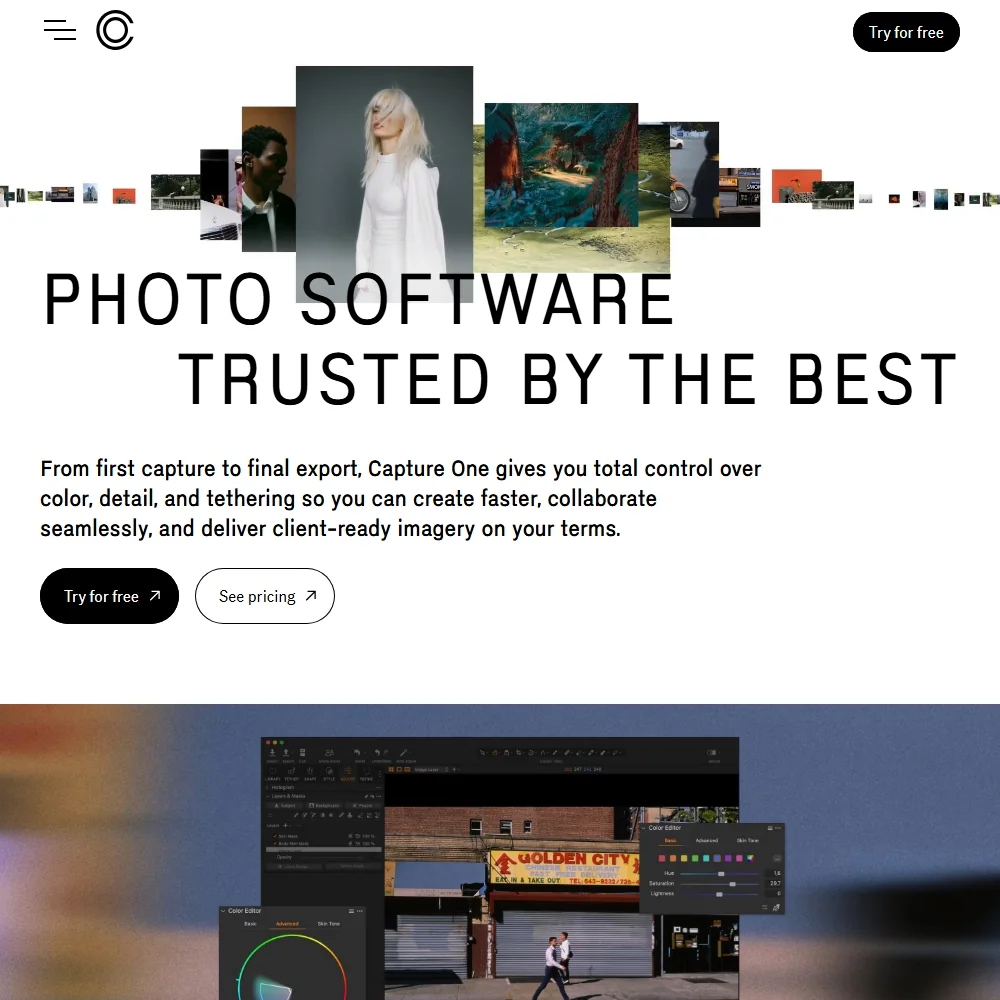
Capture One is built for studio and commercial photographers who shoot tethered and care about camera-specific color. Masking and denoise run locally, and it does not train its AI on customer data. Cloud File Transfer and Capture One Live support remote review. Pro costs $18 a month billed yearly, or $349 once for a license. Object removal is manual and there is no AI upscaler, so Lightroom suits heavier AI cleanup.
- Non-destructive raw processing with camera-specific colour profiles and tethered capture support.
- A one-time Pro License purchase, or the option to switch from a subscription to a perpetual license at any time.
- No free tier; every plan is a paid subscription or the one-time license.
Best photo retouching tools with AI
4 picksRetouching means layers, masks and files that clients or printers can open. Photoshop keeps PSD layers, full CMYK and generative fill, and is sold by subscription. Photopea opens and saves PSD files in a browser tab for free, with ads, and processes files on your own device. Affinity is a free desktop app, though its AI features need a paid Canva plan. Pixelmator Pro is a one-time $49.99 Mac app with AI background and object removal, but it has no CMYK and no batch processing. Choose by file format, platform and whether the job needs print-ready CMYK.
#ToolScorePriceWhy pick it
From $19.99Adobe Photoshop is the standard when a job needs PSD layers, adjustment layers, masks and a full CMYK working space for print, plus generative fill.
Show detailsHide details06 Adobe Photoshop: Best for layered retouching and print files8.5Score 8.5 out of 10From $19.99Adobe Photoshop is the standard when a job needs PSD layers, adjustment layers, masks and a full CMYK working space for print, plus generative fill.Visit site ↗ReviewDetailsCloseShow more about Adobe Photoshop
From $19.99
Adobe Photoshop is the standard when a job needs PSD layers, adjustment layers, masks and a full CMYK working space for print, plus generative fill.
Show detailsHide detailsAdobe Photoshop: Best for layered retouching and print files
8.5Score 8.5 out of 10From $19.99Adobe Photoshop is the standard when a job needs PSD layers, adjustment layers, masks and a full CMYK working space for print, plus generative fill.Visit site ↗ReviewDetailsClose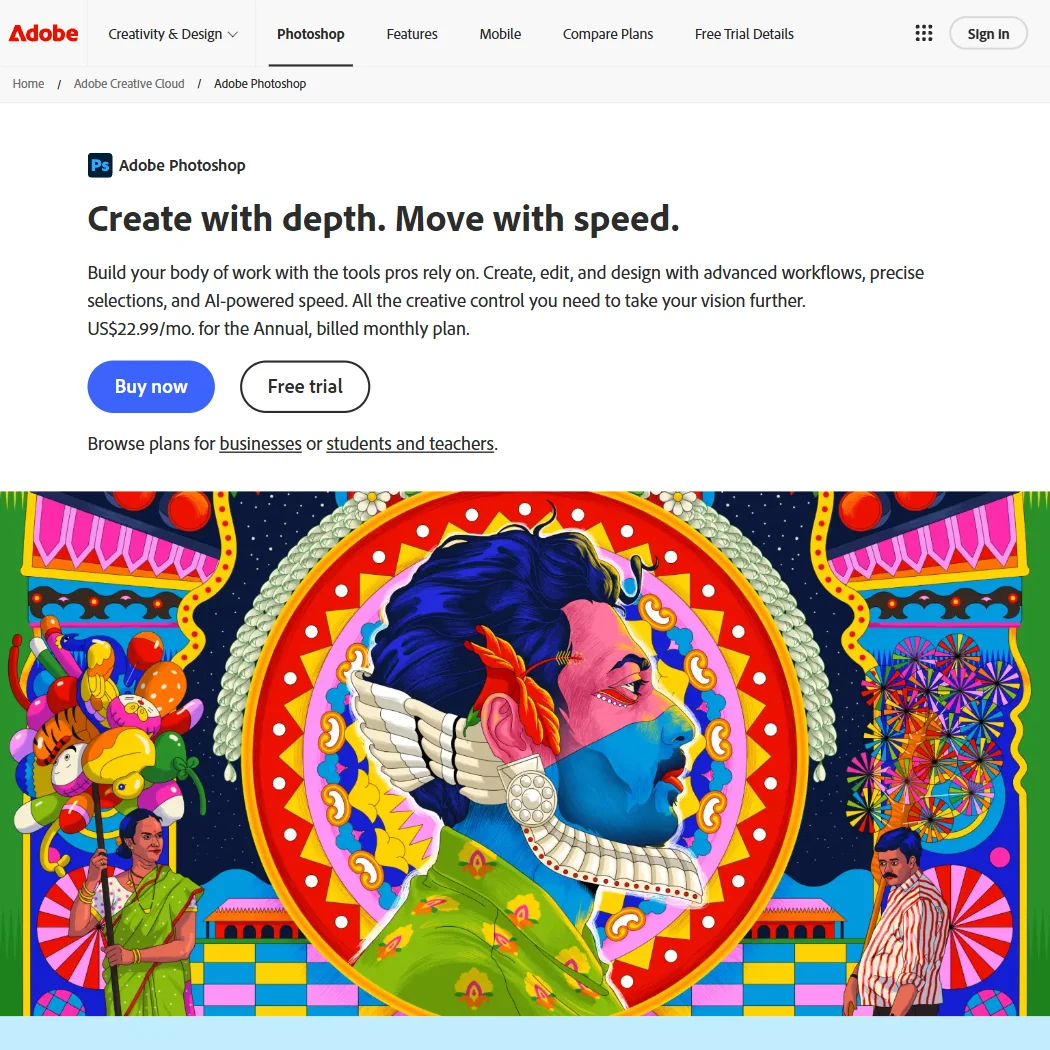
Adobe Photoshop is the standard when a job needs PSD layers, adjustment layers, masks and a full CMYK working space for print, plus generative fill. It is sold by subscription, $19.99 a month with Lightroom or $22.99 for the single app, which includes 25 generative credits a month. The desktop app has no free tier, just a 7-day trial and a feature-gated mobile app. Affinity covers much of the same ground for free.
- Supports a full CMYK working space for print, not just soft-proofing.
- Non-destructive editing through adjustment layers and masks.
- Sold only by subscription, with no perpetual license option on any plan.
FreePhotopea is the quick way to open, edit and save a PSD without installing anything or signing in.
Show detailsHide details07 Photopea: Best for opening PSD files in a browser tab8.1Score 8.1 out of 10FreePhotopea is the quick way to open, edit and save a PSD without installing anything or signing in.Visit site ↗ReviewDetailsCloseShow more about Photopea
Free
Photopea is the quick way to open, edit and save a PSD without installing anything or signing in.
Show detailsHide detailsPhotopea: Best for opening PSD files in a browser tab
8.1Score 8.1 out of 10FreePhotopea is the quick way to open, edit and save a PSD without installing anything or signing in.Visit site ↗ReviewDetailsClose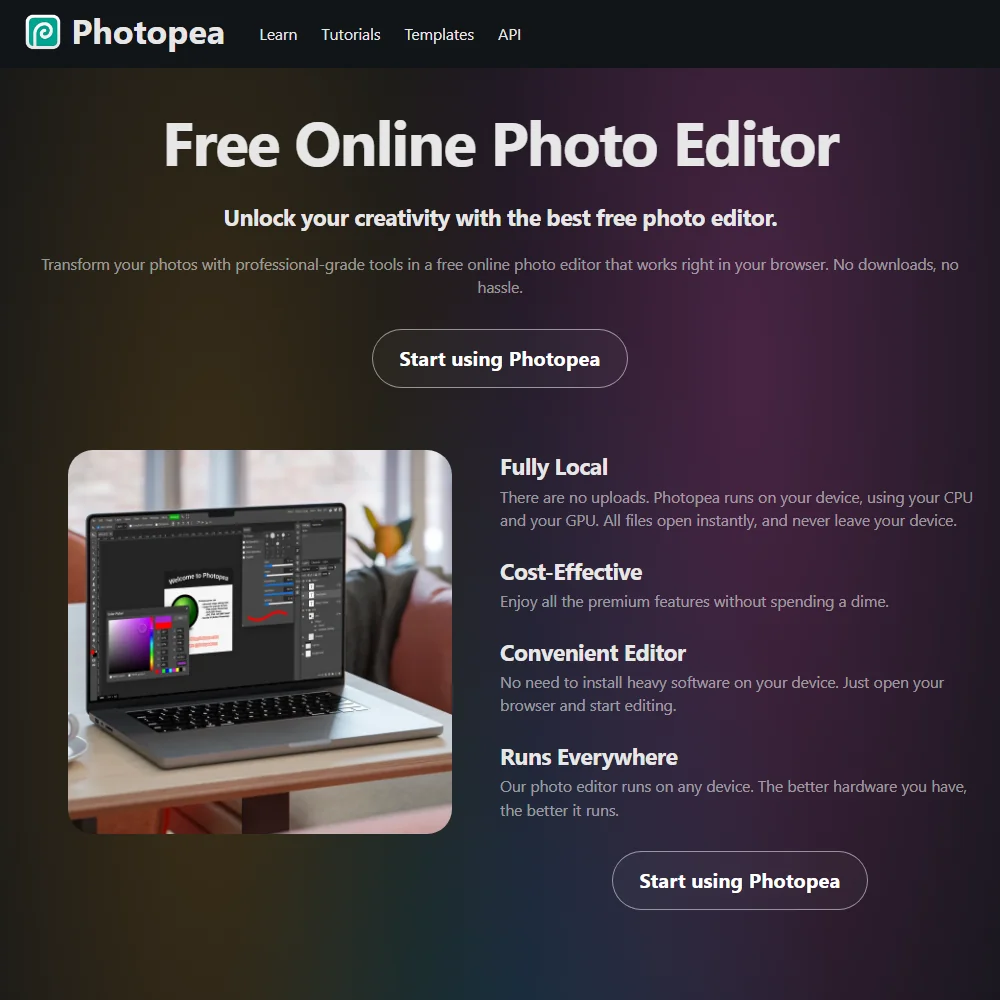
Photopea is the quick way to open, edit and save a PSD without installing anything or signing in. The full editor is free with ads, files are processed on your own device, and CMYK color profiles are supported for print. Brushes ignore pen pressure from a tablet, and Premium, which removes ads, shows its price inside the app. Photoshop is better for generative fill and large projects.
- Full editor is free to use, with no account required.
- Files are processed on your own device and never uploaded to a server.
- Premium's price is not published on the site; it only appears inside the app.
FreeAffinity gives photographers a free desktop app that joins Pixel, Vector and Layout studios, with RAW editing, tone mapping, lens correction, batch macros and print-ready CMYK output, and no watermark on exports.
Show detailsHide details08 Affinity: Best for free desktop pixel and layout editing6.9Score 6.9 out of 10FreeAffinity gives photographers a free desktop app that joins Pixel, Vector and Layout studios, with RAW editing, tone mapping, lens correction, batch macros and print-ready CMYK output, and no watermark on exports.Visit site ↗ReviewDetailsCloseShow more about Affinity
Free
Affinity gives photographers a free desktop app that joins Pixel, Vector and Layout studios, with RAW editing, tone mapping, lens correction, batch macros and print-ready CMYK output, and no watermark on exports.
Show detailsHide detailsAffinity: Best for free desktop pixel and layout editing
6.9Score 6.9 out of 10FreeAffinity gives photographers a free desktop app that joins Pixel, Vector and Layout studios, with RAW editing, tone mapping, lens correction, batch macros and print-ready CMYK output, and no watermark on exports.Visit site ↗ReviewDetailsClose
Affinity gives photographers a free desktop app that joins Pixel, Vector and Layout studios, with RAW editing, tone mapping, lens correction, batch macros and print-ready CMYK output, and no watermark on exports. Every AI feature, such as generative fill and upscaling, needs a paid Canva plan, and Canva trains on your account content unless you opt out. Download needs a free Canva account.
- The whole app, its Vector, Pixel and Layout studios together, is free to use with no restrictions or payment needed.
- Exports from the free app carry no watermark.
- Every AI feature, including generative fill, background removal, upscaling and image and vector generation, requires a separate paid Canva plan and does not work on the free app alone.
From $49.99Pixelmator Pro is for Mac photographers who want raw editing and AI background removal, object removal and upscaling for a single $49.99 purchase.
Show detailsHide details09 Pixelmator Pro: Best for Mac editing with AI cleanup, bought once6.4Score 6.4 out of 10From $49.99Pixelmator Pro is for Mac photographers who want raw editing and AI background removal, object removal and upscaling for a single $49.99 purchase.Visit site ↗ReviewDetailsCloseShow more about Pixelmator Pro
From $49.99
Pixelmator Pro is for Mac photographers who want raw editing and AI background removal, object removal and upscaling for a single $49.99 purchase.
Show detailsHide detailsPixelmator Pro: Best for Mac editing with AI cleanup, bought once
6.4Score 6.4 out of 10From $49.99Pixelmator Pro is for Mac photographers who want raw editing and AI background removal, object removal and upscaling for a single $49.99 purchase.Visit site ↗ReviewDetailsClose
Pixelmator Pro is for Mac photographers who want raw editing and AI background removal, object removal and upscaling for a single $49.99 purchase. It opens camera RAW files as layers and keeps effects non-destructive. It supports RGB but not CMYK, has no batch processing and no plug-in system, so print workflows and high volume belong in Photoshop or Affinity. The Apple Creator Studio bundle adds the iPad app.
- The Mac app can be bought once, with no subscription, and you keep it.
- Machine-learning background removal, object removal and upscaling built in.
- No CMYK color profile; only RGB is supported.
Best AI upscalers for photographers
2 picksUpscaling matters when a crop or an older file has to reach print size. Magnific has dedicated upscaling and sharpening tools, plus image models on one credit pool, and every paid plan includes a commercial license. Krea has a free plan for images that stops at 2K, while its paid upscalers reach 22K. Lightroom and darktable also enlarge inside the editor, with Lightroom's 4x enlargement using Topaz Gigapixel. Check output size, credit cost per image and commercial rights, then choose by how large the print needs to be and how often you enlarge photos.
#ToolScorePriceWhy pick it
From $20Magnific is for photographers who need to enlarge and sharpen images beyond what their editor can do: Magnific Precision and the Video Upscaler sit beside image models on one credit pool.
Show detailsHide details10 Magnific: Best for enlarging photos for print9.4Score 9.4 out of 10From $20Magnific is for photographers who need to enlarge and sharpen images beyond what their editor can do: Magnific Precision and the Video Upscaler sit beside image models on one credit pool.Visit site ↗ReviewDetailsCloseShow more about Magnific
From $20
Magnific is for photographers who need to enlarge and sharpen images beyond what their editor can do: Magnific Precision and the Video Upscaler sit beside image models on one credit pool.
Show detailsHide detailsMagnific: Best for enlarging photos for print
9.4Score 9.4 out of 10From $20Magnific is for photographers who need to enlarge and sharpen images beyond what their editor can do: Magnific Precision and the Video Upscaler sit beside image models on one credit pool.Visit site ↗ReviewDetailsClose
Magnific is for photographers who need to enlarge and sharpen images beyond what their editor can do: Magnific Precision and the Video Upscaler sit beside image models on one credit pool. Every paid plan includes a commercial license, and it does not train on your uploads. There is no free plan, and Premium is $20 a month for 20K credits. Krea gives free access, though upscaling is capped at 2K.
- Every paid plan includes a commercial AI license, so nothing generated needs a separate license before use.
- Every paid plan also includes credit free unlimited generation on a rotating set of models, including Nano Banana 2 and Kling 2.5.
- Magnific has no free plan; every tier is a paid subscription.
From $35free planKrea lets you try enhancement without paying: the free plan gives 100 compute units a day for images, with real-time generation, but no video and no commercial license, and upscaling stops at 2K.
Show detailsHide details11 Krea: Best for trying upscaling and models for free9.0Score 9.0 out of 10From $35free planKrea lets you try enhancement without paying: the free plan gives 100 compute units a day for images, with real-time generation, but no video and no commercial license, and upscaling stops at 2K.Visit site ↗ReviewDetailsCloseShow more about Krea
From $35free plan
Krea lets you try enhancement without paying: the free plan gives 100 compute units a day for images, with real-time generation, but no video and no commercial license, and upscaling stops at 2K.
Show detailsHide detailsKrea: Best for trying upscaling and models for free
9.0Score 9.0 out of 10From $35free planKrea lets you try enhancement without paying: the free plan gives 100 compute units a day for images, with real-time generation, but no video and no commercial license, and upscaling stops at 2K.Visit site ↗ReviewDetailsClose
Krea lets you try enhancement without paying: the free plan gives 100 compute units a day for images, with real-time generation, but no video and no commercial license, and upscaling stops at 2K. Pro at $35 a month adds 20,000 credits, and upscalers including Topaz Standard reach 22K. Nodes chains models into a workflow. Magnific is the option when a team shares credits.
- Krea's free plan gives 100 compute units a day with no credit card required, full access to the real time image models.
- It includes current third party models: Kling 3.0, Veo 3.1, Seedance 2.0, Nano Banana Pro, GPT-IMG-2 and Flux 2.
- The free plan cannot generate video at all; video concurrency is set to zero.
Best AI tools for backgrounds and product photos
3 picksProduct and portrait cleanup centers on cutting a subject out and placing it on a new background. Photoroom is built for sellers, with batch editing, a Shopify sync and an API, though hair and translucent packaging can trip its cutouts. Picsart pairs a photo editor with 140+ AI models and commercial use of AI output. Adobe Firefly generates backgrounds and scenes from a vendor that does not train on your content. Compare free plan limits, such as Photoroom's personal use only, then choose by volume: batch sellers need Photoroom, while one-off scenes suit Firefly.
#ToolScorePriceWhy pick it
From $9.99free planAdobe Firefly is the way to generate a clean background, extend a scene or build a product setting, from a vendor that does not train on your content and designs output to be commercially safe.
Show detailsHide details12 Adobe Firefly: Best for generating backgrounds and scenes8.1Score 8.1 out of 10From $9.99free planAdobe Firefly is the way to generate a clean background, extend a scene or build a product setting, from a vendor that does not train on your content and designs output to be commercially safe.Visit site ↗ReviewDetailsCloseShow more about Adobe Firefly
From $9.99free plan
Adobe Firefly is the way to generate a clean background, extend a scene or build a product setting, from a vendor that does not train on your content and designs output to be commercially safe.
Show detailsHide detailsAdobe Firefly: Best for generating backgrounds and scenes
8.1Score 8.1 out of 10From $9.99free planAdobe Firefly is the way to generate a clean background, extend a scene or build a product setting, from a vendor that does not train on your content and designs output to be commercially safe.Visit site ↗ReviewDetailsClose
Adobe Firefly is the way to generate a clean background, extend a scene or build a product setting, from a vendor that does not train on your content and designs output to be commercially safe. The free plan gives limited daily generations, and Standard at $9.99 a month adds 2,000 credits. Every paid plan is an annual commitment paid monthly. It works inside Photoshop and Express.
- The free plan gives limited daily generations across image, video and audio models at no cost.
- Adobe will not use your content to train its models, except content you choose to submit to Adobe Stock, which is opt-in.
- No paid plan has a true month-to-month price; every one is an annual commitment paid in monthly instalments.
From $10.50free planPicsart suits photographers who retouch and caption on a phone as much as at a desk, with 140+ AI models, a full photo and video editor and commercial use for AI output.
Show detailsHide details13 Picsart: Best for phone-friendly edits with many AI models7.3Score 7.3 out of 10From $10.50free planPicsart suits photographers who retouch and caption on a phone as much as at a desk, with 140+ AI models, a full photo and video editor and commercial use for AI output.Visit site ↗ReviewDetailsCloseShow more about Picsart
From $10.50free plan
Picsart suits photographers who retouch and caption on a phone as much as at a desk, with 140+ AI models, a full photo and video editor and commercial use for AI output.
Show detailsHide detailsPicsart: Best for phone-friendly edits with many AI models
7.3Score 7.3 out of 10From $10.50free planPicsart suits photographers who retouch and caption on a phone as much as at a desk, with 140+ AI models, a full photo and video editor and commercial use for AI output.Visit site ↗ReviewDetailsClose
Picsart suits photographers who retouch and caption on a phone as much as at a desk, with 140+ AI models, a full photo and video editor and commercial use for AI output. It has a free plan, and Pro costs $15 a month for 500 credits. Exports are PNG and PDF with no vector format, and it has no mockup feature. Photoroom is stronger for batch product cutouts.
- Picsart names more than 140 AI models available inside the app, including Kling 3.0, Nano Banana Pro, Veo 3.1 and Sora 2 Pro.
- AI-generated output from Picsart is available for commercial use.
- Real-time collaboration is listed as coming soon rather than available now.
From $7.50free planPhotoroom is the pick for sellers with many product photos: fast background removal, batch editing, an API and a Shopify Marketplace Sync.
Show detailsHide details14 Photoroom: Best for batch cutouts for product listings6.6Score 6.6 out of 10From $7.50free planPhotoroom is the pick for sellers with many product photos: fast background removal, batch editing, an API and a Shopify Marketplace Sync.Visit site ↗ReviewDetailsCloseShow more about Photoroom
From $7.50free plan
Photoroom is the pick for sellers with many product photos: fast background removal, batch editing, an API and a Shopify Marketplace Sync.
Show detailsHide detailsPhotoroom: Best for batch cutouts for product listings
6.6Score 6.6 out of 10From $7.50free planPhotoroom is the pick for sellers with many product photos: fast background removal, batch editing, an API and a Shopify Marketplace Sync.Visit site ↗ReviewDetailsClose
Photoroom is the pick for sellers with many product photos: fast background removal, batch editing, an API and a Shopify Marketplace Sync. The free plan is personal use only, with a monthly export limit, and Pro at $12.99 a month gives 8,000 AI credits and 1,000 exports. Complex edges such as hair or translucent packaging can defeat its cutouts, and it is not a general design tool.
- The background remover is fast and accurate, particularly on product images with clean subjects, backed by 80 million users.
- Purpose-built for e-commerce sellers, meaning every feature decision is shaped around product visual workflows.
- Not a general-purpose design tool, no logo generator, wireframing, or presentation builder, which will disappoint broader creative users.
Best website builders for photographers
3 picksA portfolio site has to show large images quickly and be easy to update. Wix builds a site from a written prompt, and its free plan is a working site on a Wix domain. Framer publishes a site from a design canvas with hosting, a CMS and SEO tools bundled, but it cannot export code. Webflow offers a built-in CMS and exports full HTML, CSS and JavaScript on paid plans. A custom domain needs a paid plan on all three, so compare bandwidth, pages and storage, then choose by how much control you want over layout and code.
#ToolScorePriceWhy pick it
From $17free planWix is the easiest way to get a portfolio online: its AI builder generates a full site from a written prompt, and the free plan is a working site on a Wix domain rather than a demo.
Show detailsHide details15 Wix: Best for a working portfolio built from a prompt8.0Score 8.0 out of 10From $17free planWix is the easiest way to get a portfolio online: its AI builder generates a full site from a written prompt, and the free plan is a working site on a Wix domain rather than a demo.Visit site ↗ReviewDetailsCloseShow more about Wix
From $17free plan
Wix is the easiest way to get a portfolio online: its AI builder generates a full site from a written prompt, and the free plan is a working site on a Wix domain rather than a demo.
Show detailsHide detailsWix: Best for a working portfolio built from a prompt
8.0Score 8.0 out of 10From $17free planWix is the easiest way to get a portfolio online: its AI builder generates a full site from a written prompt, and the free plan is a working site on a Wix domain rather than a demo.Visit site ↗ReviewDetailsClose
Wix is the easiest way to get a portfolio online: its AI builder generates a full site from a written prompt, and the free plan is a working site on a Wix domain rather than a demo. Paid plans start at $17 a month, all billed yearly, and include a free custom domain for the first year. You cannot export a Wix site's code, which Webflow allows.
- Wix's AI website builder can generate a full, business-ready site from a written prompt.
- Every paid tier includes a built-in eCommerce store, from Basic on Light and Core up to Advanced on Business Elite.
- Wix does not offer a way to export a site's underlying code; Velo only adds custom code that stays on Wix.
From $24free planWebflow fits photographers who want control: a built-in CMS with dynamic pages, an ecommerce add-on, automated SEO metadata and full HTML, CSS and JavaScript export on paid plans.
Show detailsHide details16 Webflow: Best for a portfolio with a real CMS8.0Score 8.0 out of 10From $24free planWebflow fits photographers who want control: a built-in CMS with dynamic pages, an ecommerce add-on, automated SEO metadata and full HTML, CSS and JavaScript export on paid plans.Visit site ↗ReviewDetailsCloseShow more about Webflow
From $24free plan
Webflow fits photographers who want control: a built-in CMS with dynamic pages, an ecommerce add-on, automated SEO metadata and full HTML, CSS and JavaScript export on paid plans.
Show detailsHide detailsWebflow: Best for a portfolio with a real CMS
8.0Score 8.0 out of 10From $24free planWebflow fits photographers who want control: a built-in CMS with dynamic pages, an ecommerce add-on, automated SEO metadata and full HTML, CSS and JavaScript export on paid plans.Visit site ↗ReviewDetailsClose
Webflow fits photographers who want control: a built-in CMS with dynamic pages, an ecommerce add-on, automated SEO metadata and full HTML, CSS and JavaScript export on paid plans. The free Starter plan publishes to a webflow.io domain with 2 static pages and a Made in Webflow badge. Basic is $25 a month. Its AI does not generate or edit images, and the next step up after Premium is $2,500 a month.
- Generates an entire website, with a scalable design system, from a basic prompt.
- Includes a built-in CMS with collection lists and dynamic pages, plus an ecommerce add-on for selling physical or digital products.
- Does not generate or edit images with AI; Webflow AI covers site generation, copy, code and CMS content only.
From $10free planFramer suits photographers who want a portfolio designed visually and published without code: hosting, a CMS and SEO tools come with the builder, and AI agents draft structure and copy.
Show detailsHide details17 Framer: Best for designing a portfolio visually, no code7.1Score 7.1 out of 10From $10free planFramer suits photographers who want a portfolio designed visually and published without code: hosting, a CMS and SEO tools come with the builder, and AI agents draft structure and copy.Visit site ↗ReviewDetailsCloseShow more about Framer
From $10free plan
Framer suits photographers who want a portfolio designed visually and published without code: hosting, a CMS and SEO tools come with the builder, and AI agents draft structure and copy.
Show detailsHide detailsFramer: Best for designing a portfolio visually, no code
7.1Score 7.1 out of 10From $10free planFramer suits photographers who want a portfolio designed visually and published without code: hosting, a CMS and SEO tools come with the builder, and AI agents draft structure and copy.Visit site ↗ReviewDetailsClose
Framer suits photographers who want a portfolio designed visually and published without code: hosting, a CMS and SEO tools come with the builder, and AI agents draft structure and copy. The free plan never expires and has 500 AI credits, 1 GB of bandwidth and a Framer domain. Basic is $15 a month, or $10 billed yearly. It has no native ecommerce and no code export.
- AI agents generate a site's structure, sections and draft copy from a prompt or brief.
- Hosting, a CMS and SEO tools are bundled together with the builder on one platform.
- No native ecommerce; selling products requires a third-party plugin that syncs an external Shopify store.
How to choose AI tools for photographers
Photo tools look alike on their home pages and charge in very different ways. Raw editors sell a subscription or a one-time license, retouching apps range from free to a monthly fee, upscalers count credits, product-photo tools count exports, and website builders count pages and bandwidth. What you need depends on whether you shoot tethered in a studio or on location, whether your clients need layered files, and how much of your work ends up online or in print. This guide matches each job to the tools on this page, then covers free plans, limits, privacy and when paying is worth it.
Start with the job, not the tool
A shoot passes through five jobs, and most photographers use one tool for each.
- Raw editing. Developing files and keeping a library. Lightroom, Capture One, ON1 Photo RAW, Luminar Neo and darktable all edit raw files, and they differ in how they charge and in whether they shoot tethered.
- Retouching. Layers, masks and print files. Photoshop, Photopea, Affinity and Pixelmator Pro handle compositing and cleanup, with different file formats and prices.
- Upscaling. Making a file large enough for print. Magnific and Krea are dedicated to it, and Lightroom and darktable enlarge inside the editor.
- Backgrounds and product shots. Cutouts and new scenes. Photoroom batches product listings, Picsart edits on a phone, and Firefly generates backgrounds.
- Portfolio website. Showing the work. Wix, Framer and Webflow publish a site with different amounts of control.
The table shows where to start on any budget.
| Job | Free | Worth paying for |
|---|---|---|
| Raw editing | darktable, the whole app free | Lightroom at $11.99 a month billed yearly, or ON1 Photo RAW at $79.99 once |
| Retouching | Photopea in a browser, or the Affinity desktop app | Photoshop with Lightroom at $19.99 a month, or Pixelmator Pro at $49.99 once on Mac |
| Upscaling | Krea's free plan, up to 2K, or darktable's on-device upscaling | Magnific Premium at $20 a month, or Krea Pro at $35 |
| Backgrounds and product shots | Photoroom free plan for personal use, or Firefly's daily generations | Photoroom Pro at $12.99 a month, or Firefly Standard at $9.99 |
| Portfolio website | Wix, Framer or Webflow free plans | Wix Light at $17 a month, Framer Basic at $15, or Webflow Basic at $25 |
Free plans hold back the part clients see: commercial rights on product photos, a custom domain on a portfolio, and AI features in editors. Pay first for whatever stops you delivering, which is usually a custom domain for the portfolio or a commercial plan for product shots.
What the free plans actually give you
Each kind of tool rations something different, so one free plan lasts a month and another lasts an afternoon.
- Raw editors. darktable is free with no paid tier. Lightroom's free tier is the mobile app, and full editing across devices needs a paid plan. ON1 Photo RAW has a 30-day trial and a free companion app, Luminar Neo has a 7-day trial, and Capture One has a 7-day trial on each plan.
- Retouching apps. Photopea's full editor is free with ads. Affinity is free with no restrictions on its Pixel, Vector and Layout studios. Photoshop has a 7-day trial and a feature-gated mobile app, and Pixelmator Pro has a 30-day trial through Apple Creator Studio.
- Upscalers. Krea gives 100 compute units a day for images, capped at 2K. Magnific has no free plan.
- Product and background tools. Photoroom's free plan is personal use only, with a monthly export limit and a low AI generation limit. Firefly gives limited daily generations. Picsart has a free plan.
- Website builders. Wix's free plan is a working site on a Wix domain. Webflow's Starter gives a webflow.io domain, 2 static pages, 1 GB of bandwidth, 50 form submissions and 200 AI credits. Framer's free plan gives 500 AI credits, 1 GB of bandwidth and a Framer domain.
Which tools fit which photographer
- A hobbyist on no budget. Start with darktable for raw files and Affinity for retouching, because both are free with no time limit. Add Wix's free plan to show the results.
- A portrait or wedding photographer. Start with Lightroom, because the library and edits sync across devices and its AI masks save time on large sets. Add Photoshop for retouching in layers.
- A studio or commercial photographer. Start with Capture One, because it shoots tethered and gives camera-specific color. Add Photoshop for composites that clients will open as PSD files.
- A photographer who wants to buy once. Start with ON1 Photo RAW at $79.99 or Luminar Neo from $129, because both include AI tools without a subscription. Add Pixelmator Pro if you work on a Mac.
- A product photographer. Start with Photoroom for batch cutouts, because it supports batch editing and Shopify sync. Add Firefly for generated backgrounds and Picsart for quick phone edits.
- A landscape or print seller. Start with Lightroom for enlargement and Magnific for bigger files. Add Webflow when the portfolio needs a CMS and clean code.
A typical shoot step by step
- Import and sort. ON1 Photo RAW browses folders without an import step, Capture One shoots tethered, and Lightroom syncs the library to your phone.
- Edit the raw files. Use AI masks and denoising in Lightroom, ON1, Luminar Neo, Capture One or darktable.
- Remove distractions. Use Lightroom's Generative Remove, Luminar Neo or Pixelmator Pro. In darktable and Capture One, use manual heal and clone tools.
- Retouch in layers. Photoshop, Affinity or Photopea, for composites and PSD files.
- Swap or build backgrounds. Photoroom for product cutouts, Firefly for generated scenes.
- Enlarge for print. Lightroom's generative upscale, Magnific or Krea, depending on the size.
- Share with the client. Capture One Live and Cloud File Transfer support remote review, and Lightroom shares edited albums.
- Publish the portfolio. Wix for speed, Framer for a design-led site, Webflow for a CMS and code.
Where free plans stop
| Limit | Tools | What happens when you hit it |
|---|---|---|
| Daily count | Krea (100 compute units), Firefly (daily generations) | It renews, so waiting costs time, not money |
| Monthly limit | Photoroom (monthly export limit), Webflow (1 GB bandwidth, 50 form submissions), Framer (1 GB bandwidth) | You wait, or move to a paid plan |
| Trial window | Photoshop (7 days), Lightroom (7 days), ON1 Photo RAW (30 days), Luminar Neo (7 days), Capture One (7 days) | The trial ends and the plan has to be paid for |
| Rights | Photoroom (personal use only), Krea (no commercial license) | The result cannot go into client work until you upgrade |
| AI behind a paywall | Affinity (a paid Canva plan), ON1 (MAX for cloud tools), Luminar Neo (first year) | The editor works, the AI stops or needs another payment |
| Domain and branding | Wix (Wix domain), Webflow (webflow.io and a badge), Framer (Framer domain) | The site works but does not carry your own address |
Match each limit to how you work. A daily allowance suits steady use, so test a few frames a day. A rights limit is simple: nothing from that plan should reach a client. Use a free plan to prove the routine on a real shoot, then pay for the one tool that blocks delivery.
Privacy and who sees your photos
Client photos are often unpublished, so check where a tool processes them. Several tools state their policy.
| Stated policy | Tools |
|---|---|
| AI runs on your own device | darktable, Capture One (masking and denoise), Photopea (files stay on your device) |
| Does not train on your content | Lightroom, Photoshop, Firefly, Pixelmator Pro, Capture One, Magnific, Webflow |
| Trains by default, with an opt-out | Affinity, through Canva |
| Terms grant a license to train | Framer on non-Enterprise plans |
Keep client galleries in the first two rows, and switch training off in the third as soon as you sign up. Lightroom syncs your library to Adobe's cloud, so it suits work you are happy to store online. For commercial work, also check rights: Photoroom's free plan is personal use only, Krea's free plan has no commercial license, and every Magnific paid plan includes one.
Mistakes to avoid
- Treating Lightroom's free app as the full editor. The free tier is the mobile app, and full editing across devices needs a paid plan. Test the desktop app on the 7-day trial first.
- Buying a one-time license for the AI tools. Luminar Neo includes AI tool access for the first year, and ON1's cloud tools need the MAX plan. Check what the license covers before you buy.
- Using Photoroom's free plan on client products. It is personal use only. Move to Pro at $12.99 a month before listing photos for a client.
- Trusting automatic cutouts on hair and glass. Photoroom can struggle with complex edges such as hair and translucent packaging. Check the mask in Photoshop or Affinity before delivery.
- Uploading client portraits to Affinity's AI without checking settings. Canva trains on your account content by default unless you turn it off. Do that on day one, or keep the file in darktable or Photopea.
When it is worth paying
You have outgrown a free plan when it shapes the work: skipping a client delivery because of a rights limit, shrinking a print because upscaling stops at 2K, or sending a portfolio link on a branded subdomain. Those are signs to pay for the one tool that blocks you.
| If you are | Upgrade to | What changes |
|---|---|---|
| Editing on several devices | Lightroom | Cloud library, Generative Remove and generative upscale at $11.99 a month billed yearly |
| Shooting tethered in a studio | Capture One Pro | Tethered capture and camera-specific color, $18 a month billed yearly or $349 once |
| Wanting to own your editor | ON1 Photo RAW | $79.99 once, or $129.99 for MAX with Restore AI and cloud AI |
| Retouching client files | Photoshop with Lightroom | PSD layers and generative fill, $19.99 a month on the Photography plan |
| Listing products | Photoroom Pro | 8,000 AI credits and 1,000 exports a month, with commercial use |
| Selling large prints | Magnific Premium | 20K credits a month, upscaling tools and a commercial license |
| Publishing a portfolio | Wix Light, Framer Basic or Webflow Basic | A custom domain and more storage or pages |
Billing period changes the price. Lightroom's $11.99 is Adobe's rate with an annual commitment, Capture One costs noticeably more month to month than billed yearly, and Wix plans are all billed yearly. Photoroom Pro is $12.99 monthly or $7.50 billed yearly, and Framer Basic is $15 monthly or $10 billed yearly. Trials help before you commit: Capture One, Luminar Neo and Lightroom give 7 days, and ON1 Photo RAW gives 30.
How we picked
Every tool here is ranked by its score, and each score is worked out from the vendor’s own published pages: pricing, plans, features and terms. No score is adjusted by hand. All 17 tools have enough published facts to be scored, and on average 92% of each score comes from facts the vendor publishes. The facts behind these scores were checked between 19 September 2026 and 8 October 2026.
Scores compare tools that do the same job, which is why the list is grouped by job: a video editor and a grammar checker are never ranked against each other.
| Ranked as | On this page | What we score | Scoring guide |
|---|---|---|---|
| Raw photo editors6 reviewed | 5 | 4 criteria, 19 checked facts: what it adds beyond the basics, workflow and sharing, pricing, privacy and trust | How we score these → |
| Photo editors9 reviewed | 4 | 4 criteria, 21 checked facts: what it adds beyond the basics, workflow and output, pricing, privacy and trust | How we score these → |
| AI website builders8 reviewed | 3 | 5 criteria, 22 checked facts: what you can build, workflow and output, pricing, teams and platforms, privacy and trust | How we score these → |
| Multi-model AI platforms14 reviewed | 2 | 5 criteria, 28 checked facts: for video, for images, pricing, workflow and teams, privacy and trust | How we score these → |
| AI graphic design tools8 reviewed | 2 | 5 criteria, 23 checked facts: what you can make, workflow and output, pricing, teams and platforms, privacy and trust | How we score these → |
| AI image generators7 reviewed | 1 | 5 criteria, 26 checked facts: what it makes, control and automation, rights and privacy, pricing, openness and support | How we score these → |
Common questions
Should I buy photo software once or subscribe?
It depends on how long you keep it. ON1 Photo RAW costs $79.99 once, Luminar Neo $129, Pixelmator Pro $49.99 and Capture One's Pro License $349. Lightroom and Photoshop are sold by subscription. Check what a one-time price includes, since Luminar's AI tools are bundled for the first year and ON1's cloud tools need MAX.
Which editors remove objects with AI?
Lightroom has Generative Remove, ON1 Photo RAW and Luminar Neo list object removal, and Pixelmator Pro has built-in AI object removal. darktable and Capture One rely on manual heal and clone tools instead. If removing power lines or passers-by is a daily job, pick from the first group.
Do I need both Lightroom and Photoshop?
Many photographers use both: Lightroom for raw editing and library, Photoshop for layers and composites. The Photography plan includes both at $19.99 a month, which is cheaper than the single-app Photoshop plan at $22.99. If you rarely use layers, Lightroom with Affinity or Photopea can cover the same ground.
Can I run a portfolio without paying?
Yes, on a platform domain. Wix's free plan is a working site on a Wix domain, Framer gives a Framer domain, and Webflow's Starter gives a webflow.io domain with a Made in Webflow badge. A custom domain needs a paid plan on each, and Webflow's free plan allows 2 static pages.
How big can I enlarge a photo?
Use the editor for modest enlargement and a dedicated upscaler beyond that. Lightroom's generative upscale gives 4x through Topaz Gigapixel and Super Resolution doubles linear resolution, while darktable offers 2x or 4x on your device. Krea's upscalers reach 22K on paid plans, and Magnific is built around upscaling.