Magnific is the pick if upscaling is one part of a larger creative job: one credit pool covers its own Magnific Precision upscaler and Video Upscaler, the Topaz upscalers and more than thirty other companies' image and video models.
Buying guide · 7 tools ranked
Best AI Image Upscalers
Find the best AI image upscalers, grouped by job: enlarging in the browser, upscaling offline on your own computer, fixing old and blurry photos, or upscaling video. Pick the group that matches your files and where you want them processed, then read who each tool suits and what its free plan leaves on the image.
Our top 3 AI Image Upscalers
Upscayl is the free answer for offline upscaling: the desktop app is open source, runs on Windows, Mac and Linux, needs no internet and has no image limit.
A box of scanned family prints is where VanceAI fits: old photo restoration sits beside sharpening, denoising and face restoration, and the Windows app batches hundreds of photos at once.
Best AI image upscalers online
4 picksAn online upscaler needs nothing installed, so the picks differ in how far they enlarge, how they charge and what the free plan leaves on the image. Let's Enhance goes up to 16x with output up to 512 MP, on credits that roll over. VanceAI charges more credits as the enlargement grows, up to 8x on the web. Clipdrop's free plan upscales 2x for 20 images a day, and Pro reaches 16x. Magnific puts its upscalers inside a paid creative suite with dozens of image and video models. Choose by the largest size you need and how many images you process each month.
#ToolScorePriceWhy pick it
From $20Magnific is the pick if upscaling is one part of a larger creative job: one credit pool covers its own Magnific Precision upscaler and Video Upscaler, the Topaz upscalers and more than thirty other companies' image and video models.
Show detailsHide details01 Magnific: Best for upscaling inside a full creative suite9.4Score 9.4 out of 10From $20Magnific is the pick if upscaling is one part of a larger creative job: one credit pool covers its own Magnific Precision upscaler and Video Upscaler, the Topaz upscalers and more than thirty other companies' image and video models.Visit site ↗ReviewDetailsCloseShow more about Magnific
From $20
Magnific is the pick if upscaling is one part of a larger creative job: one credit pool covers its own Magnific Precision upscaler and Video Upscaler, the Topaz upscalers and more than thirty other companies' image and video models.
Show detailsHide detailsMagnific: Best for upscaling inside a full creative suite
9.4Score 9.4 out of 10From $20Magnific is the pick if upscaling is one part of a larger creative job: one credit pool covers its own Magnific Precision upscaler and Video Upscaler, the Topaz upscalers and more than thirty other companies' image and video models.Visit site ↗ReviewDetailsClose
Magnific is the pick if upscaling is one part of a larger creative job: one credit pool covers its own Magnific Precision upscaler and Video Upscaler, the Topaz upscalers and more than thirty other companies' image and video models. Every paid plan includes a commercial license, and your uploads are not used for training. There is no free plan, prices change with your location, and its own tools sharpen and upscale rather than generate. Let's Enhance costs less if enlarging is all you do.
- Every paid plan includes a commercial AI license, so nothing generated needs a separate license before use.
- Every paid plan also includes credit free unlimited generation on a rotating set of models, including Nano Banana 2 and Kling 2.5.
- Magnific has no free plan; every tier is a paid subscription.
From $20free planVanceAI suits someone who wants a browser tool and a desktop option from one company: web plans buy credits for upscaling, sharpening, denoising and restoration, and VanceAI for PC runs on Windows with no credits to count.
Show detailsHide details02 VanceAI: Best for web credits plus a Windows app7.6Score 7.6 out of 10From $20free planVanceAI suits someone who wants a browser tool and a desktop option from one company: web plans buy credits for upscaling, sharpening, denoising and restoration, and VanceAI for PC runs on Windows with no credits to count.Visit site ↗ReviewDetailsCloseShow more about VanceAI
From $20free plan
VanceAI suits someone who wants a browser tool and a desktop option from one company: web plans buy credits for upscaling, sharpening, denoising and restoration, and VanceAI for PC runs on Windows with no credits to count.
Show detailsHide detailsVanceAI: Best for web credits plus a Windows app
7.6Score 7.6 out of 10From $20free planVanceAI suits someone who wants a browser tool and a desktop option from one company: web plans buy credits for upscaling, sharpening, denoising and restoration, and VanceAI for PC runs on Windows with no credits to count.Visit site ↗ReviewDetailsClose
VanceAI suits someone who wants a browser tool and a desktop option from one company: web plans buy credits for upscaling, sharpening, denoising and restoration, and VanceAI for PC runs on Windows with no credits to count. On the web, upscaling costs 1 credit at 2x, 2 at 4x and 3 at 8x, so large enlargements use credits faster than Let's Enhance, where most jobs cost one. Web upscales stop at 8x, and free jobs wait in a queue.
- VanceAI for PC processes unlimited images locally on Windows, with a lifetime licence option.
- The Windows app upscales up to 40x and batches hundreds of photos at once.
- Web upscaling costs more credits at higher scales: 2 at 4x and 3 at 8x.
From $9free planLet's Enhance is the browser upscaler for big output: it enlarges 2x to 16x or to custom dimensions, with up to 512 MP on Max, so a small product photo can become a poster.
Show detailsHide details03 Let's Enhance: Best for very large print-ready upscales6.9Score 6.9 out of 10From $9free planLet's Enhance is the browser upscaler for big output: it enlarges 2x to 16x or to custom dimensions, with up to 512 MP on Max, so a small product photo can become a poster.Visit site ↗ReviewDetailsCloseShow more about Let's Enhance
From $9free plan
Let's Enhance is the browser upscaler for big output: it enlarges 2x to 16x or to custom dimensions, with up to 512 MP on Max, so a small product photo can become a poster.
Show detailsHide detailsLet's Enhance: Best for very large print-ready upscales
6.9Score 6.9 out of 10From $9free planLet's Enhance is the browser upscaler for big output: it enlarges 2x to 16x or to custom dimensions, with up to 512 MP on Max, so a small product photo can become a poster.Visit site ↗ReviewDetailsClose
Let's Enhance is the browser upscaler for big output: it enlarges 2x to 16x or to custom dimensions, with up to 512 MP on Max, so a small product photo can become a poster. The Ultra model lets you tune Intensity and Size of Changes. Monthly credits roll over and one-time bundles never expire, which suits uneven workloads. Free results carry a watermark, everything is processed in the cloud, and Ultra can use more than one credit per image at large sizes.
- Upscales 2x to 16x or to custom dimensions, with output up to 512 MP on Max.
- The creativity of the Ultra model can be tuned with Intensity and Size of Changes.
- Free results carry a watermark.
From $15free planClipdrop works on daily allowances rather than monthly credits: the free plan upscales at 2x for 20 images every 24 hours, and you can drop in up to 10 files at once.
Show detailsHide details04 Clipdrop: Best for quick free 2x upscales every day5.2Score 5.2 out of 10From $15free planClipdrop works on daily allowances rather than monthly credits: the free plan upscales at 2x for 20 images every 24 hours, and you can drop in up to 10 files at once.Visit site ↗ReviewDetailsCloseShow more about Clipdrop
From $15free plan
Clipdrop works on daily allowances rather than monthly credits: the free plan upscales at 2x for 20 images every 24 hours, and you can drop in up to 10 files at once.
Show detailsHide detailsClipdrop: Best for quick free 2x upscales every day
5.2Score 5.2 out of 10From $15free planClipdrop works on daily allowances rather than monthly credits: the free plan upscales at 2x for 20 images every 24 hours, and you can drop in up to 10 files at once.Visit site ↗ReviewDetailsClose
Clipdrop works on daily allowances rather than monthly credits: the free plan upscales at 2x for 20 images every 24 hours, and you can drop in up to 10 files at once. The same site removes backgrounds, cleans up and relights, which saves a second tool. Pro raises the upscaler to 16x and 1,000 uses per tool a day, and its terms do not limit commercial use. Free jobs wait in a queue, and it handles images, not video.
- The free plan upscales at 2x, for 20 images every 24 hours.
- Pro upscales up to 16x, with 1,000 uses per tool every 24 hours.
- There is no video upscaling; the tools cover images.
Best AI upscalers that run on your computer
3 picksRunning the upscaler on your own computer keeps your files on your machine and stops the count per image. The picks differ in price, platform and what they repair. Upscayl is free and open source for Windows, Mac and Linux, needs no internet and has no image limit. Topaz Labs sells Gigapixel and Topaz Photo as subscriptions for Mac and PC, with Photoshop and Lightroom Classic plugins. VanceAI for PC runs on Windows, upscales up to 40x and comes with a lifetime license option. Choose by whether free enlargement is enough or you also need face recovery, denoising and a plugin.
#ToolScorePriceWhy pick it
From $9.99free planUpscayl is the free answer for offline upscaling: the desktop app is open source, runs on Windows, Mac and Linux, needs no internet and has no image limit.
Show detailsHide details05 Upscayl: Best for free offline upscaling on any computer7.9Score 7.9 out of 10From $9.99free planUpscayl is the free answer for offline upscaling: the desktop app is open source, runs on Windows, Mac and Linux, needs no internet and has no image limit.Visit site ↗ReviewDetailsCloseShow more about Upscayl
From $9.99free plan
Upscayl is the free answer for offline upscaling: the desktop app is open source, runs on Windows, Mac and Linux, needs no internet and has no image limit.
Show detailsHide detailsUpscayl: Best for free offline upscaling on any computer
7.9Score 7.9 out of 10From $9.99free planUpscayl is the free answer for offline upscaling: the desktop app is open source, runs on Windows, Mac and Linux, needs no internet and has no image limit.Visit site ↗ReviewDetailsClose
Upscayl is the free answer for offline upscaling: the desktop app is open source, runs on Windows, Mac and Linux, needs no internet and has no image limit. It enlarges up to 16x, and Batch Upscayl handles many files at once. Your images are not used for training. It fixes pixelation while enlarging but cannot de-blur or adjust focus, and face enhancement sits on the paid Upscayl Cloud, so Topaz Photo is the step up for damaged portraits.
- The desktop app is free, open source and unlimited on your own computer.
- Processing happens on your machine, with no internet connection needed.
- It fixes pixelation while enlarging but cannot de-blur or adjust focus.
From $20free planVanceAI for PC is the Windows choice for someone who would rather own the software: it processes unlimited images locally, upscales up to 40x, batches hundreds of photos at once and keeps every file on your machine.
Show detailsHide details06VanceAI: Best for a lifetime license on Windows7.6Score 7.6 out of 10From $20free planVanceAI for PC is the Windows choice for someone who would rather own the software: it processes unlimited images locally, upscales up to 40x, batches hundreds of photos at once and keeps every file on your machine.Visit site ↗ReviewDetailsCloseShow more about VanceAI
From $20free plan
VanceAI for PC is the Windows choice for someone who would rather own the software: it processes unlimited images locally, upscales up to 40x, batches hundreds of photos at once and keeps every file on your machine.
Show detailsHide detailsVanceAI: Best for a lifetime license on Windows
7.6Score 7.6 out of 10From $20free planVanceAI for PC is the Windows choice for someone who would rather own the software: it processes unlimited images locally, upscales up to 40x, batches hundreds of photos at once and keeps every file on your machine.Visit site ↗ReviewDetailsCloseVanceAI for PC is the Windows choice for someone who would rather own the software: it processes unlimited images locally, upscales up to 40x, batches hundreds of photos at once and keeps every file on your machine. The license comes monthly, yearly or for a lifetime on one PC, where Topaz Gigapixel is now a subscription. It is a Windows app, so on a Mac, Upscayl and Topaz are the options on this page.
- VanceAI for PC processes unlimited images locally on Windows, with a lifetime licence option.
- The Windows app upscales up to 40x and batches hundreds of photos at once.
- Web upscaling costs more credits at higher scales: 2 at 4x and 3 at 8x.
From $29Photographers who edit in Photoshop or Lightroom Classic should look at Topaz Labs first, since Gigapixel works as a plugin in both and renders unlimited images on your own Mac or PC.
Show detailsHide details07 Topaz Labs: Best for photographers working in Photoshop and Lightroom7.0Score 7.0 out of 10From $29Photographers who edit in Photoshop or Lightroom Classic should look at Topaz Labs first, since Gigapixel works as a plugin in both and renders unlimited images on your own Mac or PC.Visit site ↗ReviewDetailsCloseShow more about Topaz Labs
From $29
Photographers who edit in Photoshop or Lightroom Classic should look at Topaz Labs first, since Gigapixel works as a plugin in both and renders unlimited images on your own Mac or PC.
Show detailsHide detailsTopaz Labs: Best for photographers working in Photoshop and Lightroom
7.0Score 7.0 out of 10From $29Photographers who edit in Photoshop or Lightroom Classic should look at Topaz Labs first, since Gigapixel works as a plugin in both and renders unlimited images on your own Mac or PC.Visit site ↗ReviewDetailsClose
Photographers who edit in Photoshop or Lightroom Classic should look at Topaz Labs first, since Gigapixel works as a plugin in both and renders unlimited images on your own Mac or PC. Topaz Photo adds denoising, sharpening and face recovery, and the Redefine model rebuilds detail in damaged images. Both are subscriptions, with no free plan and no perpetual license, and personal plans cover commercial use for organizations under $1M in revenue. Upscayl costs nothing if enlargement is enough.
- The desktop apps render unlimited images on your own Mac or PC.
- Gigapixel works as a plugin in Photoshop and Lightroom Classic.
- Gigapixel and Photo are now subscriptions, not perpetual licences.
Best AI tools for restoring old and blurry photos
3 picksOld prints and blurry snaps need more than enlargement: faces have to be rebuilt and motion blur removed. The picks differ in where they run and how they bill. Remini, on a phone or the web, is built around face enhancement, unblurring and old photo restoration, and it enlarges up to 2x. VanceAI has an old photo restoration tool next to sharpening and denoising, on the web or in its Windows app. Let's Enhance enlarges and enhances in the browser up to 16x for big prints. Choose by whether the problem is a blurry face or a file that is simply too small.
#ToolScorePriceWhy pick it
From $20free planA box of scanned family prints is where VanceAI fits: old photo restoration sits beside sharpening, denoising and face restoration, and the Windows app batches hundreds of photos at once.
Show detailsHide details08VanceAI: Best for restoring old photos in large batches7.6Score 7.6 out of 10From $20free planA box of scanned family prints is where VanceAI fits: old photo restoration sits beside sharpening, denoising and face restoration, and the Windows app batches hundreds of photos at once.Visit site ↗ReviewDetailsCloseShow more about VanceAI
From $20free plan
A box of scanned family prints is where VanceAI fits: old photo restoration sits beside sharpening, denoising and face restoration, and the Windows app batches hundreds of photos at once.
Show detailsHide detailsVanceAI: Best for restoring old photos in large batches
7.6Score 7.6 out of 10From $20free planA box of scanned family prints is where VanceAI fits: old photo restoration sits beside sharpening, denoising and face restoration, and the Windows app batches hundreds of photos at once.Visit site ↗ReviewDetailsCloseA box of scanned family prints is where VanceAI fits: old photo restoration sits beside sharpening, denoising and face restoration, and the Windows app batches hundreds of photos at once. It does not train its models on customers' images without written permission. In the browser every tool draws on the same credits and free jobs queue, so a large archive goes further on the PC license, which has no credits to count.
- VanceAI for PC processes unlimited images locally on Windows, with a lifetime licence option.
- The Windows app upscales up to 40x and batches hundreds of photos at once.
- Web upscaling costs more credits at higher scales: 2 at 4x and 3 at 8x.
From $9free planWhen an old photo needs to become a large print, Let's Enhance is the choice: it enlarges up to 16x with output up to 512 MP, and batches of 20 images help when you scan a whole album.
Show detailsHide details09Let's Enhance: Best for enlarging old photos for print6.9Score 6.9 out of 10From $9free planWhen an old photo needs to become a large print, Let's Enhance is the choice: it enlarges up to 16x with output up to 512 MP, and batches of 20 images help when you scan a whole album.Visit site ↗ReviewDetailsCloseShow more about Let's Enhance
From $9free plan
When an old photo needs to become a large print, Let's Enhance is the choice: it enlarges up to 16x with output up to 512 MP, and batches of 20 images help when you scan a whole album.
Show detailsHide detailsLet's Enhance: Best for enlarging old photos for print
6.9Score 6.9 out of 10From $9free planWhen an old photo needs to become a large print, Let's Enhance is the choice: it enlarges up to 16x with output up to 512 MP, and batches of 20 images help when you scan a whole album.Visit site ↗ReviewDetailsCloseWhen an old photo needs to become a large print, Let's Enhance is the choice: it enlarges up to 16x with output up to 512 MP, and batches of 20 images help when you scan a whole album. The Ultra model's Intensity and Size of Changes let you decide how much detail it invents. Free results are watermarked and every file goes to the cloud, so Upscayl or VanceAI for PC keep private family photos on your own computer.
- Upscales 2x to 16x or to custom dimensions, with output up to 512 MP on Max.
- The creativity of the Ultra model can be tuned with Intensity and Size of Changes.
- Free results carry a watermark.
From $9.99free planRemini is the phone app for faces: the Face Enhancer brings out detail in portraits, and Unblur and Sharpener removes motion blur, camera shake and focus problems, which suits old family prints and shaky selfies.
Show detailsHide details10 Remini: Best for blurry faces fixed on your phone6.2Score 6.2 out of 10From $9.99free planRemini is the phone app for faces: the Face Enhancer brings out detail in portraits, and Unblur and Sharpener removes motion blur, camera shake and focus problems, which suits old family prints and shaky selfies.Visit site ↗ReviewDetailsCloseShow more about Remini
From $9.99free plan
Remini is the phone app for faces: the Face Enhancer brings out detail in portraits, and Unblur and Sharpener removes motion blur, camera shake and focus problems, which suits old family prints and shaky selfies.
Show detailsHide detailsRemini: Best for blurry faces fixed on your phone
6.2Score 6.2 out of 10From $9.99free planRemini is the phone app for faces: the Face Enhancer brings out detail in portraits, and Unblur and Sharpener removes motion blur, camera shake and focus problems, which suits old family prints and shaky selfies.Visit site ↗ReviewDetailsClose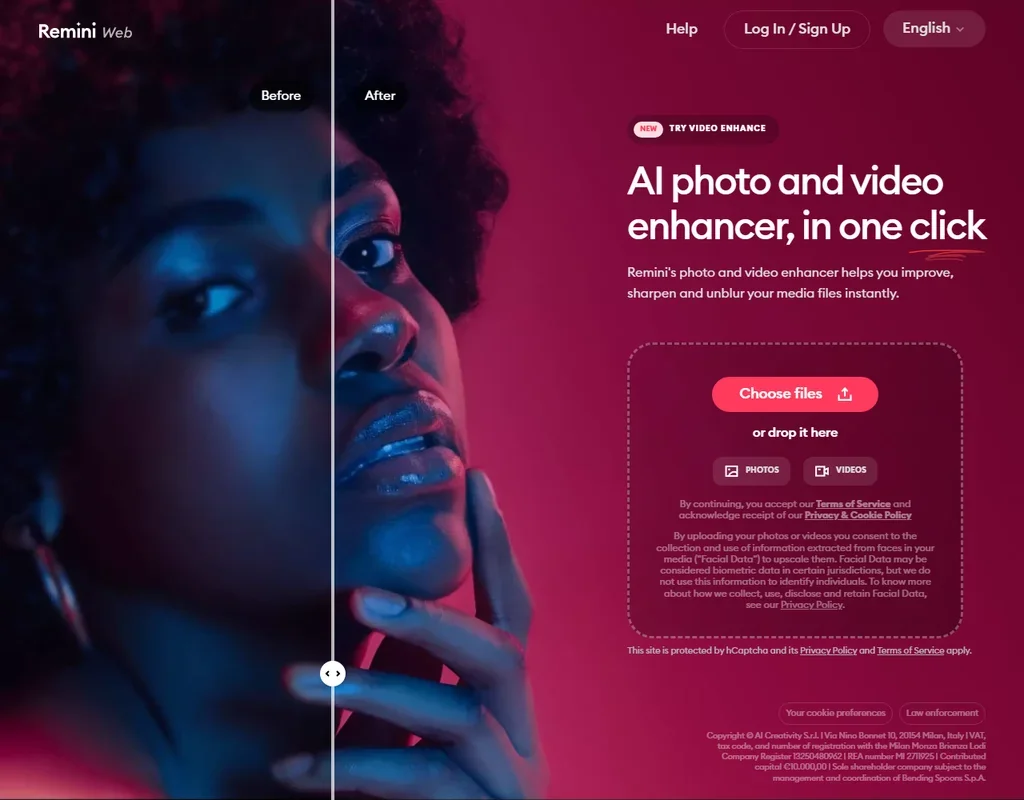
Remini is the phone app for faces: the Face Enhancer brings out detail in portraits, and Unblur and Sharpener removes motion blur, camera shake and focus problems, which suits old family prints and shaky selfies. Uploads train its AI only if you opt in. It enlarges up to 2x, to 4096 by 4096 pixels, so it fixes a photo more than it enlarges it. Most app plans bill weekly, and the web and app subscriptions are bought separately.
- The Face Enhancer brings out facial detail in portraits.
- The Unblur and Sharpener tool removes motion blur, camera shake and focus problems.
- Enlargement goes up to 2x, with images up to 4096 x 4096 pixels.
Best AI upscalers for video
4 picksHere video upscaling sits beside the image tools rather than inside them, so check which plan or app covers it before you buy. Topaz Labs sells Topaz Video as its own desktop app, also part of the Topaz Studio bundle with 300 monthly video cloud credits. Let's Enhance has a video upscaler to 4K next to its image tools in the browser. Remini's Video Enhancer enhances and enlarges clips in its app and on the web. VanceAI's video upscaler draws on the same web credits as its image tools. Choose by whether you edit on a desktop or want a quick fix in the browser or on a phone.
#ToolScorePriceWhy pick it
From $20free planVanceAI includes a video upscaler among its web tools, and it draws on the same credits as image upscaling, so one plan covers both.
Show detailsHide details11VanceAI: Best for video on the same web credits7.6Score 7.6 out of 10From $20free planVanceAI includes a video upscaler among its web tools, and it draws on the same credits as image upscaling, so one plan covers both.Visit site ↗ReviewDetailsCloseShow more about VanceAI
From $20free plan
VanceAI includes a video upscaler among its web tools, and it draws on the same credits as image upscaling, so one plan covers both.
Show detailsHide detailsVanceAI: Best for video on the same web credits
7.6Score 7.6 out of 10From $20free planVanceAI includes a video upscaler among its web tools, and it draws on the same credits as image upscaling, so one plan covers both.Visit site ↗ReviewDetailsCloseVanceAI includes a video upscaler among its web tools, and it draws on the same credits as image upscaling, so one plan covers both. That suits someone who upscales photos most weeks and video now and then. Pay as you go packs, from 200 credits for $40, fit occasional video work without a monthly plan. Developers reach the same tools through the API on the same credits. Topaz Video is the desktop route for regular footage.
- VanceAI for PC processes unlimited images locally on Windows, with a lifetime licence option.
- The Windows app upscales up to 40x and batches hundreds of photos at once.
- Web upscaling costs more credits at higher scales: 2 at 4x and 3 at 8x.
From $29Topaz Labs handles video through Topaz Video, a separate app from Gigapixel that is also part of Topaz Studio.
Show detailsHide details12Topaz Labs: Best for desktop video upscaling with Topaz Video7.0Score 7.0 out of 10From $29Topaz Labs handles video through Topaz Video, a separate app from Gigapixel that is also part of Topaz Studio.Visit site ↗ReviewDetailsCloseShow more about Topaz Labs
From $29
Topaz Labs handles video through Topaz Video, a separate app from Gigapixel that is also part of Topaz Studio.
Show detailsHide detailsTopaz Labs: Best for desktop video upscaling with Topaz Video
7.0Score 7.0 out of 10From $29Topaz Labs handles video through Topaz Video, a separate app from Gigapixel that is also part of Topaz Studio.Visit site ↗ReviewDetailsCloseTopaz Labs handles video through Topaz Video, a separate app from Gigapixel that is also part of Topaz Studio. Studio bundles all five Topaz apps for $69 a month or $399 a year, with 300 monthly video cloud credits, so it suits an editor who restores both footage and photos on a desktop. Topaz never trains models on customer data or content. There is no free plan, and Gigapixel on its own works on images.
- The desktop apps render unlimited images on your own Mac or PC.
- Gigapixel works as a plugin in Photoshop and Lightroom Classic.
- Gigapixel and Photo are now subscriptions, not perpetual licences.
From $9free planFor a video upscale without installing anything, Let's Enhance has a video upscaler to 4K next to its image tools in the browser.
Show detailsHide details13Let's Enhance: Best for video to 4K in the browser6.9Score 6.9 out of 10From $9free planFor a video upscale without installing anything, Let's Enhance has a video upscaler to 4K next to its image tools in the browser.Visit site ↗ReviewDetailsCloseShow more about Let's Enhance
From $9free plan
For a video upscale without installing anything, Let's Enhance has a video upscaler to 4K next to its image tools in the browser.
Show detailsHide detailsLet's Enhance: Best for video to 4K in the browser
6.9Score 6.9 out of 10From $9free planFor a video upscale without installing anything, Let's Enhance has a video upscaler to 4K next to its image tools in the browser.Visit site ↗ReviewDetailsCloseFor a video upscale without installing anything, Let's Enhance has a video upscaler to 4K next to its image tools in the browser. That suits someone who mostly enlarges photos and now and then needs a clip sharper. Processing happens in the cloud, there is no desktop app, and free results carry a watermark, so test a short clip before buying credits. Topaz Video suits regular editing work on a desktop.
- Upscales 2x to 16x or to custom dimensions, with output up to 512 MP on Max.
- The creativity of the Ultra model can be tuned with Intensity and Size of Changes.
- Free results carry a watermark.
From $9.99free planRemini's Video Enhancer enhances and enlarges videos as well as photos, in the phone app and on Remini Web, which makes it the quick route for a clip shot on a phone.
Show detailsHide details14Remini: Best for enhancing video on a phone6.2Score 6.2 out of 10From $9.99free planRemini's Video Enhancer enhances and enlarges videos as well as photos, in the phone app and on Remini Web, which makes it the quick route for a clip shot on a phone.Visit site ↗ReviewDetailsCloseShow more about Remini
From $9.99free plan
Remini's Video Enhancer enhances and enlarges videos as well as photos, in the phone app and on Remini Web, which makes it the quick route for a clip shot on a phone.
Show detailsHide detailsRemini: Best for enhancing video on a phone
6.2Score 6.2 out of 10From $9.99free planRemini's Video Enhancer enhances and enlarges videos as well as photos, in the phone app and on Remini Web, which makes it the quick route for a clip shot on a phone.Visit site ↗ReviewDetailsCloseRemini's Video Enhancer enhances and enlarges videos as well as photos, in the phone app and on Remini Web, which makes it the quick route for a clip shot on a phone. Web Business adds video enhancement with unlimited images, no watermark and commercial use. The app is free to download with ads, and most app plans bill weekly from $4.99 to $9.99 a week, so cancel after the job if it is a one-off.
- The Face Enhancer brings out facial detail in portraits.
- The Unblur and Sharpener tool removes motion blur, camera shake and focus problems.
- Enlargement goes up to 2x, with images up to 4096 x 4096 pixels.
How to choose an AI image upscaler
The upscalers here all enlarge images, and the real differences are where the work happens, what each enlargement costs and what else they repair. A browser tool counts credits per image, a desktop app counts nothing once you have it, and a phone app is built around faces. This guide matches each job to a tool, then covers free plans, privacy and the point where paying makes sense.
Start with the job, not the tool
Four jobs cover most reasons to upscale.
- Enlarge in the browser. Let's Enhance, VanceAI, Clipdrop and Magnific run online with nothing to install.
- Upscale offline on your own computer. Upscayl runs free on Windows, Mac and Linux, Topaz Labs on Mac and PC, and VanceAI for PC on Windows.
- Fix old and blurry photos. Remini is built around faces and unblurring, VanceAI has old photo restoration, and Let's Enhance enlarges repaired scans for print.
- Upscale video. Topaz Video, Let's Enhance, Remini and VanceAI all handle video beside their image tools.
The table shows where to start on any budget.
| Job | Free | Worth paying for |
|---|---|---|
| Enlarge in the browser | Clipdrop (2x, 20 images a day) | Let's Enhance Starter at $12 a month, or $9 a month billed yearly |
| Upscale offline | Upscayl, free and unlimited | Topaz Gigapixel at $149 a year, or VanceAI for PC with a lifetime license |
| Fix old and blurry photos | Remini's app, free to download with ads | Topaz Photo at $199 a year, or Remini Web Personal |
| Upscale video | Buy a small one-time pack instead of a plan | Topaz Studio at $399 a year, which includes Topaz Video |
Free plans enlarge, but they watermark (Let's Enhance), queue (VanceAI and Clipdrop) or stop at 2x (Clipdrop). Pay first for the job you repeat every week, and buy one-time credits for the jobs you do once.
What the free plans actually give you
Each kind of tool gives away something different.
- Browser upscalers. Clipdrop upscales 2x for 20 images every 24 hours, with a separate daily limit for each tool. Let's Enhance's free results carry a watermark. VanceAI's free jobs wait in a queue that paid web plans skip. Magnific has no free plan.
- Desktop apps. Upscayl Desktop is free and unlimited, with no internet needed. Upscayl Cloud's trial covers 10 credits with input up to 8 MP. Topaz Labs has no free plan.
- Phone apps. Remini's app is free to download, with ads and in-app purchases.
In a normal week, Upscayl covers any amount of plain enlargement at no cost, and Clipdrop's 20 a day covers quick 2x jobs in the browser. Paying starts to matter when you need faces rebuilt, more than 2x online, or a clean file with no watermark.
Which tools fit which person
- A photographer. Start with Topaz Labs, because Gigapixel works as a plugin in Photoshop and Lightroom Classic. Add Topaz Photo for denoising and face recovery.
- An online seller or print shop. Start with Let's Enhance, because output reaches 512 MP on Max and it takes batches of 20 images. Add Clipdrop for background removal and cleanup.
- Someone restoring family photos. Start with Remini on the phone for blurry faces. Add VanceAI for PC when the archive is large and you work on Windows.
- Someone with no budget. Start with Upscayl on your computer. Add Clipdrop's free 2x in the browser when you are away from it.
- A designer making images and video. Start with Magnific, because one credit pool covers upscaling and more than thirty other companies' models. Add Topaz Studio if you restore footage on a desktop.
- A developer. Start with the Let's Enhance API, sold through Claid.ai with 50 free test credits. VanceAI, Upscayl Cloud and Magnific have APIs too.
Upscaling a photo for print, step by step
- Check the source. A pixelated image needs enlargement, while a blurry or damaged one needs repair first. Upscayl fixes pixelation but cannot de-blur.
- Repair faces and blur. Use Remini's Face Enhancer and Unblur, Topaz Photo's Face Recovery, or VanceAI's restoration and sharpening.
- Pick the size. Work out the pixel size the print needs before you choose a tool, since the tools here stop at very different sizes.
- Choose where to run it. Private photos and large batches go to Upscayl, Topaz or VanceAI for PC on your own machine; one-off jobs suit the browser.
- Tune the result. Let's Enhance's Ultra model has Intensity and Size of Changes controls, and Topaz's Redefine model rebuilds detail.
- Batch the rest. Batch Upscayl, VanceAI for PC (hundreds at once), Let's Enhance (20 at a time) and Clipdrop (10 files at once) handle the remaining files.
- Check rights before you sell. Clipdrop's terms do not limit commercial use, Magnific includes a commercial license on paid plans, Topaz personal plans cover organizations under $1M in revenue, and Remini's commercial use sits on Web Business.
- Export the right format. Remini Web Business outputs JPG, PNG or TIFF, while Remini Web Personal outputs JPG.
Where free plans stop
| Limit | Tools | What happens when you hit it |
|---|---|---|
| Watermark | Let's Enhance free results | The file carries a mark until you use paid credits |
| Daily count | Clipdrop (20 images at 2x) | The allowance resets every 24 hours |
| Queue | VanceAI and Clipdrop free jobs | Jobs wait in a queue that paid plans skip |
| One-time trial | Upscayl Cloud (10 credits, input up to 8 MP) | Further cloud jobs need a plan or a one-time pack |
| Paid from the start | Topaz Labs, Magnific | There is no free plan to try |
Free tools cover plain enlargement well, especially Upscayl on your own machine. When a limit bites on an occasional job, a one-time pack such as Let's Enhance's 20 credits for $9 or Upscayl Cloud's 50 credits for $9.99, both of which never expire, costs less than a subscription you forget to cancel.
Privacy and who sees your photos
Family photos, client shoots and product images are often private, and running locally keeps them off anyone else's server. Upscayl Desktop, Topaz's desktop apps and VanceAI for PC process on your own machine, while Let's Enhance and Clipdrop process on their servers. These tools state how they treat your images.
| Tool | Training on your images |
|---|---|
| Upscayl | Not used to train AI models |
| Topaz Labs | Never trains models on customer data or content |
| Magnific | No training on your uploads |
| VanceAI | Not used without written permission |
| Remini | Only if you opt in, and face data of people in the US is not used |
For photos of other people, prefer a tool that runs locally or states no training. On Remini, leave the training opt-in switched off.
Mistakes to avoid
- Upscaling a blurry photo and expecting it sharp. Upscayl enlarges and fixes pixelation but cannot de-blur. Run Remini's Unblur, Topaz Photo or VanceAI's sharpener first.
- Paying web credits for a huge batch. VanceAI's web tool charges up to 3 credits an image at 8x. A desktop app with unlimited local processing, such as Upscayl, Topaz or VanceAI for PC, costs less once the batch is large.
- Leaving a weekly plan running. Most of Remini's app plans bill weekly, from $4.99 to $9.99 a week. Cancel after a one-off restoration job.
- Selling images without checking the license. Remini keeps commercial use for Web Business, and organizations over $1M in revenue need a Topaz Pro license. Upscayl Cloud has models cleared for commercial use.
- Running Ultra at large sizes without checking credits. Let's Enhance's Ultra can use more than one credit per image at large sizes, so test one image before a batch.
When it is worth paying
Pay when a free limit gets in the way of work you repeat: a watermark on images you sell, a queue that slows a deadline, or faces that need rebuilding.
| If you are | Upgrade to | What changes |
|---|---|---|
| Upscaling for print every month | Let's Enhance Starter | 100 credits a month that roll over up to 600, output up to 256 MP |
| Working in Photoshop or Lightroom | Topaz Gigapixel | Unlimited local rendering and a plugin, $149 a year |
| Processing large batches on Windows | VanceAI for PC | Unlimited local processing on 1 PC, $39.90 for a month |
| Restoring and upscaling video | Topaz Studio | All five Topaz apps and 300 monthly video cloud credits |
| Upscaling in the browser now and then | Clipdrop Pro at $15 a month | Up to 16x, 1,000 uses per tool a day, no queue |
Yearly billing cuts most prices here. Topaz Gigapixel is $29 a month, $19 a month on an annual plan billed monthly, or $149 a year, and Topaz for Web is shown at $109 a year, reduced from $199. VanceAI Starter drops from $20 to $15 a month billed yearly, and Upscayl Cloud Pro 100 is $9.99 a month or $89.99 a year. Remini's app plans are listed as iOS in-app purchases, and its web and app subscriptions are billed separately, so cancel in the place you bought. Magnific's prices depend on your location, and Clipdrop Pro has a free trial.
What would this stack cost you?
Add our top picks (Magnific, Upscayl, VanceAI and 1 more) to the calculator and see the monthly total, then swap in the plans you would pay for.
How we picked
Every tool here is ranked by its score, and each score is worked out from the vendor’s own published pages: pricing, plans, features and terms. No score is adjusted by hand. All 7 tools have enough published facts to be scored, and on average 90% of each score comes from facts the vendor publishes. The facts behind these scores were checked between 28 September 2026 and 31 October 2026.
Scores compare tools that do the same job, which is why the list is grouped by job: a video editor and a grammar checker are never ranked against each other.
| Ranked as | On this page | What we score | Scoring guide |
|---|---|---|---|
| AI image upscalers6 reviewed | 6 | 4 criteria, 17 checked facts: what it does, where it runs, pricing, privacy and trust | How we score these → |
| Multi-model AI platforms14 reviewed | 1 | 5 criteria, 28 checked facts: for video, for images, pricing, workflow and teams, privacy and trust | How we score these → |
Common questions
How large can an AI upscaler make an image?
Let's Enhance enlarges up to 16x with output up to 512 MP on Max, and Upscayl Cloud Business also reaches 512 MP. Upscayl Desktop and Clipdrop Pro go up to 16x, VanceAI's web tool to 8x with uploads up to 34 MP on paid plans, and VanceAI for PC to 40x. Remini enlarges up to 2x, to 4096 by 4096 pixels. Pick by the print size you need, then by price.
Do AI upscalers work on a phone?
Remini is built for the phone, with apps for iOS and Android and a separate Remini Web. Topaz for Web includes Topaz for Mobile on iPhone, and Magnific has iOS, Android and Windows apps. Let's Enhance, Clipdrop and VanceAI's web tools run in the browser. Upscayl and Topaz's desktop apps need a computer, which is also where offline upscaling happens.
Are credits or unlimited plans cheaper for upscaling?
It depends on volume. Let's Enhance charges most jobs 1 credit per image and rolls unused credits over, while VanceAI's web upscaling costs 1 credit at 2x and up to 3 at 8x. Clipdrop counts uses per day instead of per month. Upscayl Desktop, Topaz's desktop apps and VanceAI for PC process unlimited images locally, so they come out ahead once you upscale large batches every month.
Which AI upscalers restore faces?
Remini's Face Enhancer brings out facial detail in portraits, and Topaz Photo's Face Recovery rebuilds detail in faces and damaged images. VanceAI includes face restoration with its upscaling. Upscayl keeps face enhancement on its paid Cloud tier rather than the free desktop app. For a single portrait, Remini on a phone is the simplest start; for a whole shoot, Topaz Photo works on your own computer.
Which upscalers have an API?
The Let's Enhance API is sold through Claid.ai, with up to 16x enlargement, 4K and 8K output, batch jobs and 50 free test credits. VanceAI's API draws on the same credits as its web plans, Upscayl Cloud includes an API, and Magnific's API gives credit-based access to its tools. Clipdrop's API is now sold as the Jasper API, priced on usage.